# Asset Refinement and Push-back
Adjust character, scene, and prop variants on the canvas, then decide whether to keep them as a new variant or overwrite the original.
Asset nodes in Infinite Canvas are working copies of Director Console variants. They are suitable for targeted corrections such as adding a main image, filling in multi-angle views, swapping reference images, and chaining downstream image or video nodes to validate the result.
## Typical flow
1. Drag a character, scene, or prop variant in from the Director Console.
2. Use an Upload node or an Image node to attach new images to the asset node.
3. Continue adding images, generating, or comparing the current result inside the asset node.
4. Click "Push to the Director Console."
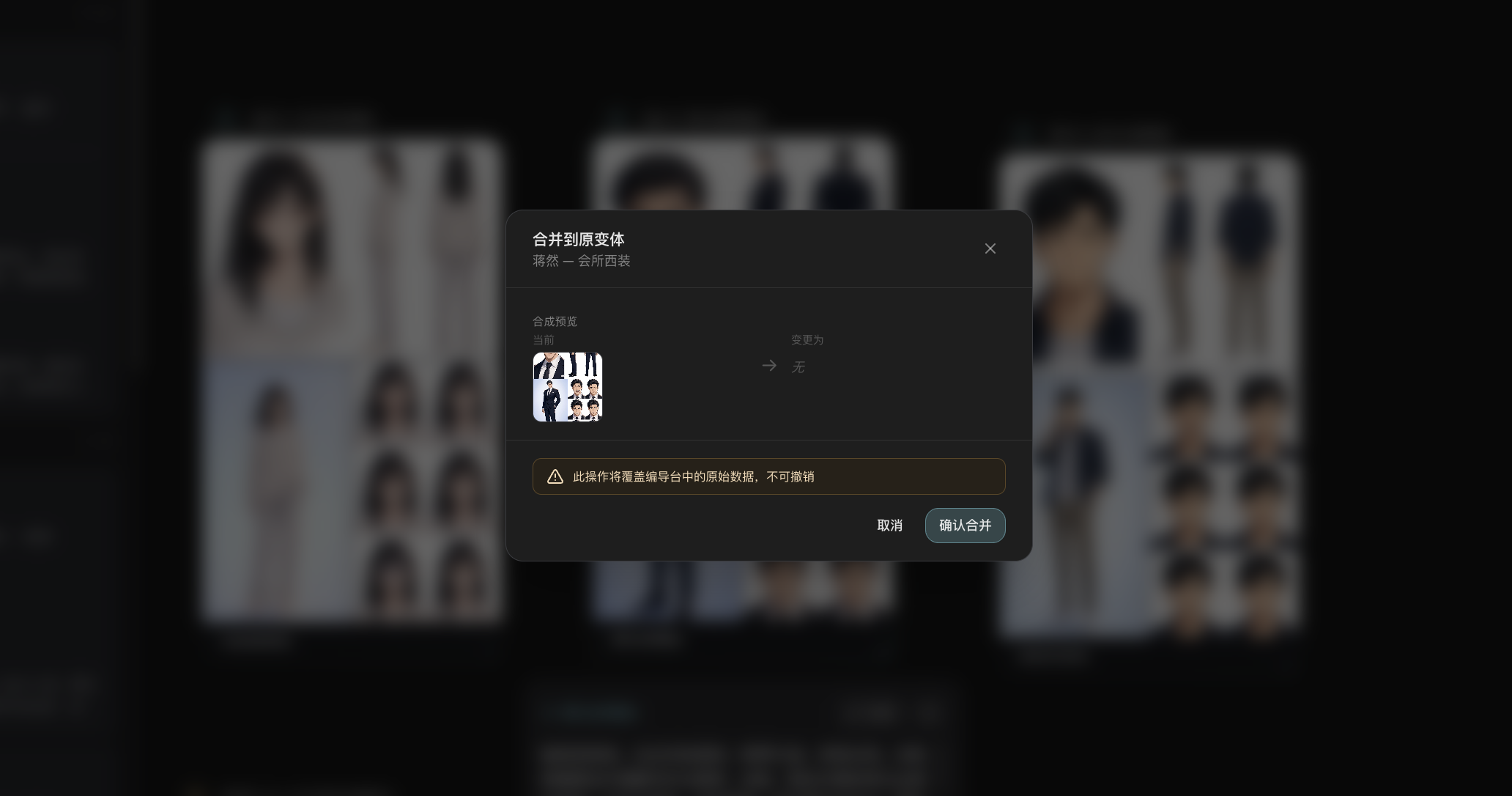
5. Choose how to commit it between "Create as a new variant" and "Merge into the original variant."
```mermaid actions={false}
flowchart LR
A["Director console variant dragged onto the canvas"] --> B["Upload node / Image node connected"]
B --> C["Asset node updates the current view"]
C --> D["Push to the Director Console"]
D --> E{"Save mode"}
E -->|Recommended first| F["Create as a new variant"]
E -->|Overwrite confirmed| G["Merge into the original variant"]
```
## What you can edit on the canvas
Based on current node capabilities:
- Character: front view, multi-angle views, and expression images.
- Scene: main view, front view, back view, and side view.
- Prop: main view and multi-angle views.
These can come from:
- The upload entry inside the asset node.
- Upstream connections from upload nodes or image nodes.
- Generation started inside the node.
## Two push-back modes
### Create as a new variant
Best for:
- You are not yet sure whether to replace the current production version.
- You want to keep multiple directions and compare them in parallel.
- The current canvas is derived from an existing asset.
Behavior:
- Copies a new variant from the current variant.
- If the canvas has new valid image slots connected, those results are written into the new variant as well.
- After success, a new variant appears in the Director Console.
### Merge into the original variant
Best for:
- You have confirmed that the canvas result is the final version to write back.
- You do not need to preserve the current state of the original variant.
Behavior:
- The system first reads the original variant and the current canvas variant, then compares the differences.
- If differences exist, a comparison confirmation dialog appears and shows each item as "current" and "change to."
- After confirmation, the result is written directly back to the original variant.
> The original merge warning reads: **This operation will overwrite the original data in the Director Console and cannot be undone.**
> After you choose "Merge into the original variant," the confirmation dialog shows the current content and the resulting changes. Because confirming the merge overwrites the original data in the Director Console and cannot be undone, review the differences carefully before continuing.
## When to prefer creating a new variant
- You only want to try a new expression, angle, or composition.
- The current canvas nodes are extended edits of an existing variant.
- The team still needs to compare multiple versions.
## When to consider merging
- The original Director Console variant was only a transitional version.
- You have already finished the final corrections on the canvas.
- You clearly understand that overwriting cannot be undone.
## Practical advice
- Treat the canvas as the "adjustment desk" and the Director Console as the "source library."
- Before pushing back, check whether the upstream image connected to the current node is really the final result you want to keep.
- For important characters and key scenes, prefer creating a new variant on the first push-back, then choose the default version in the Director Console.
## Continue reading
- [Connections and Upstream References](/docs/bomitv/canvas/connections.md)
- [Uploads and Media History](/docs/bomitv/canvas/uploads-history.md)
- [Node Types](/docs/bomitv/canvas/nodes.md)