# Connections and Upstream References
Understand which nodes can connect, and what upstream input each connection passes into the current node.
Connections do more than indicate order. For supported nodes, a connection also passes the upstream output directly into the current node as input, a reference image, or reference content.
## Basic rules
- Drag from the output point on the right side of one node to the input point of another node to create a connection.
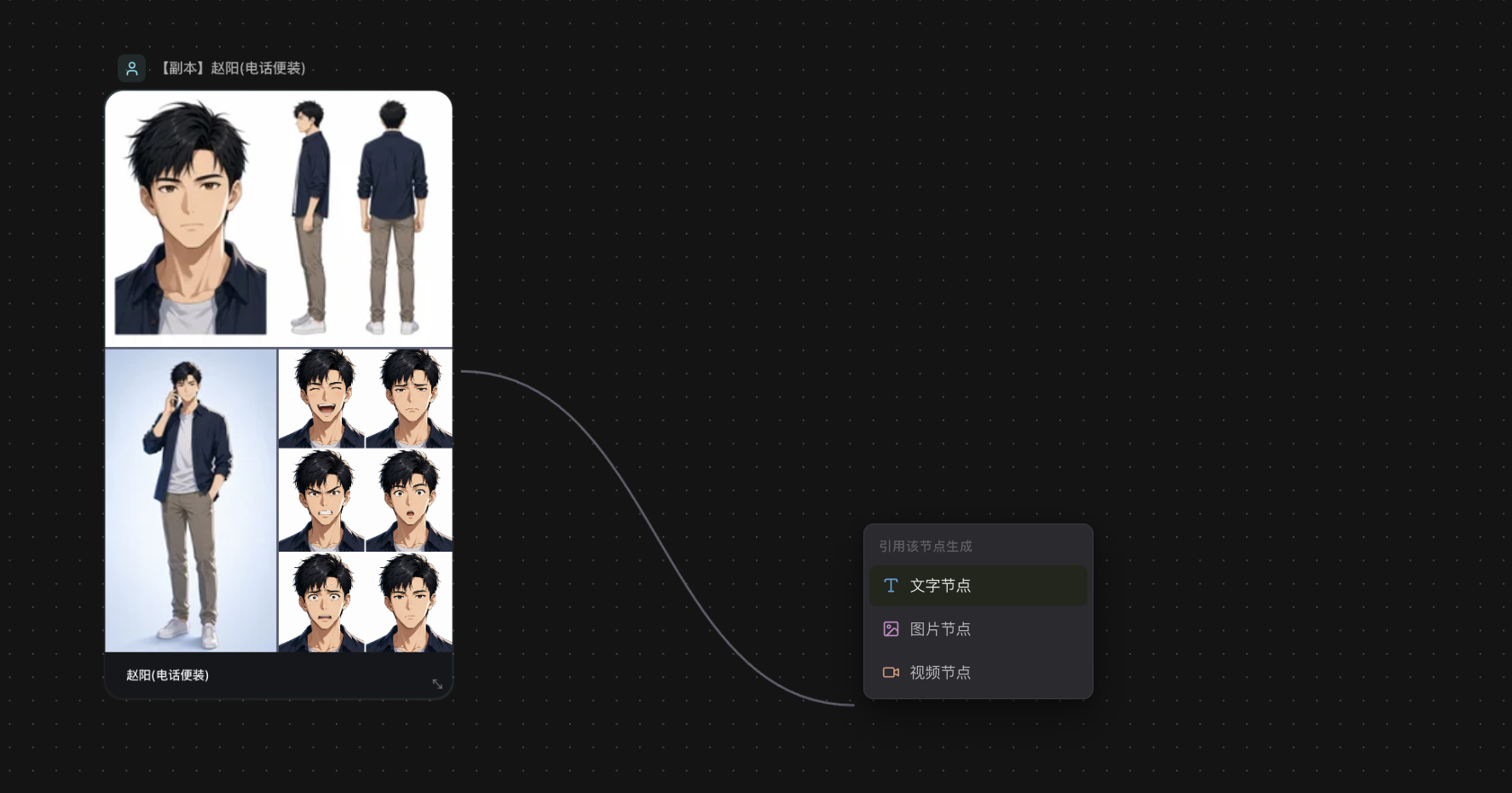
- Ending the drag on empty space does not cancel it immediately; it opens the "Generate from this node reference" quick menu.
- Right-click a connection line to delete the connection.
- When a target slot is connected to a new source, the old connection is replaced.
## Which nodes can connect
Current rules:
- Text nodes can connect to text, image, video, and audio nodes.
- Image nodes can connect to text, image, and video nodes, as well as character, scene, and prop asset nodes.
- Video nodes can connect to text nodes.
- Audio nodes can connect to text nodes.
- Upload nodes can connect to text, image, video, and audio nodes, as well as character, scene, and prop asset nodes.
- Character, scene, and prop nodes can also act as upstream sources and connect to text, image, video, and other asset nodes.
- Shot nodes and group nodes themselves cannot be connection sources.
```mermaid actions={false}
flowchart LR
A["Text node"] --> B["Image node"]
A --> C["Video node"]
D["Upload node"] --> B
B --> C
E["Character / Scene / Prop node"] --> B
E --> C
C --> F["Text node"]
G["Audio node"] --> F
```
## What happens after connecting
### When connecting to an image node
- Upstream text is used as text input.
- Upstream images are used as reference images.
- Reference images uploaded inside the node also participate alongside upstream references.
### When connecting to a video node
- Upstream text is used as text input.
- Upstream images may be used as reference images, first frames, or last frames, depending on the selected model and node mode.
- If some frame slots already contain uploaded images, new image connections may be blocked.
### When connecting to text and audio nodes
- Upstream outputs from text, image, video, and audio nodes can all appear as reference content in the input area.
- Text nodes can use multiple references as context for continued generation; audio nodes are used for speech generation, where upstream text is added to the generated text and non-text references are displayed only in the input area.
### When connecting to asset nodes
- Images from image nodes or upload nodes can be written directly into asset node image slots.
- This is the common way to fine-tune asset variants on the canvas.
## Quick add
When you drag from a node's output point to empty space, the "Generate from this node reference" menu appears:
- Only node types that can legally follow the current node are shown.
- Once selected, a new node is created immediately and the connection line is added automatically.
- The new node label includes suffixes from asset ports, such as Character Front View or Scene Main View.
- Press `Esc` to cancel the quick add flow.
> Drag a connection line from an asset node's output point to empty space on the canvas, then choose a text, image, or video node to create a new node that references the current asset and connects automatically.
## What upstream references actually do
- It saves you from uploading the same image or copying the same text repeatedly.
- It keeps the "source of truth" for assets inside the canvas structure, making it easier to trace later.
- It is a good fit for chaining Director Console asset variants, uploaded assets, and generated results into reusable intermediate flows.
## Continue reading
- [Node Types](/docs/bomitv/canvas/nodes.md)
- [Asset Refinement and Push-back](/docs/bomitv/canvas/asset-workflow.md)
- [Actions and Shortcuts](/docs/bomitv/canvas/operations-shortcuts.md)