# Node Types
Understand where each node type in Infinite Canvas comes from, what it is for, and what content it is best suited to hold.
Nodes in Infinite Canvas currently fall into four groups: generation nodes, upload nodes, Director Console nodes, and organization nodes.
## Generation nodes
### Text nodes
- Suitable for writing prompts, organizing intermediate text, or carrying upstream results from video or audio.
- Can connect to upstream outputs from text, image, video, and audio nodes.
- Content can be edited manually, and output history is preserved.
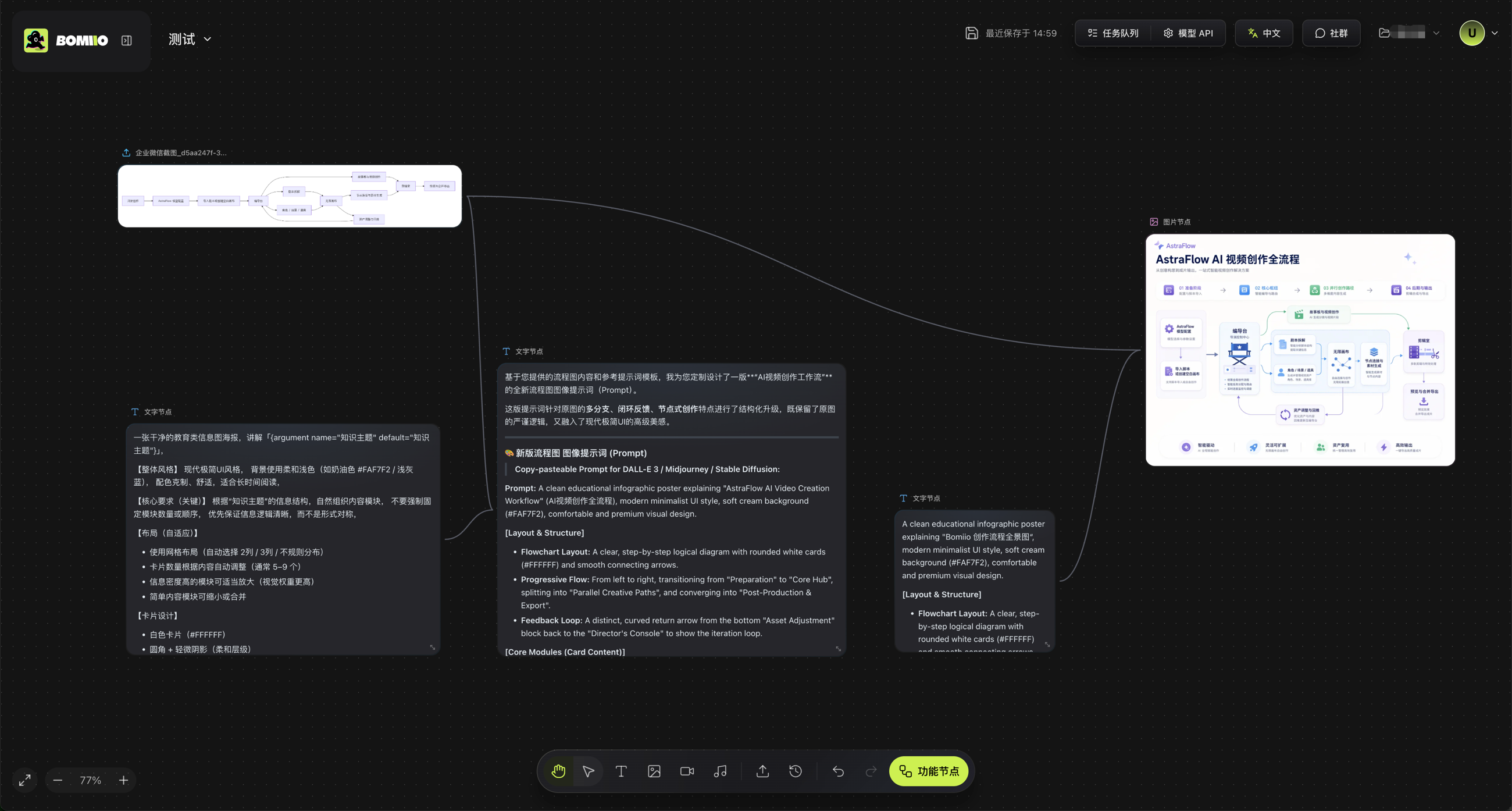
> Text nodes let you split prompts across different layers, then connect them to downstream image nodes to make the generation process easier to reuse and refine.
### Image nodes
- Used for image generation or image editing.
- Can receive upstream text and images, and you can also add reference images inside the node.
- History keeps results from different runs so you can switch versions easily.
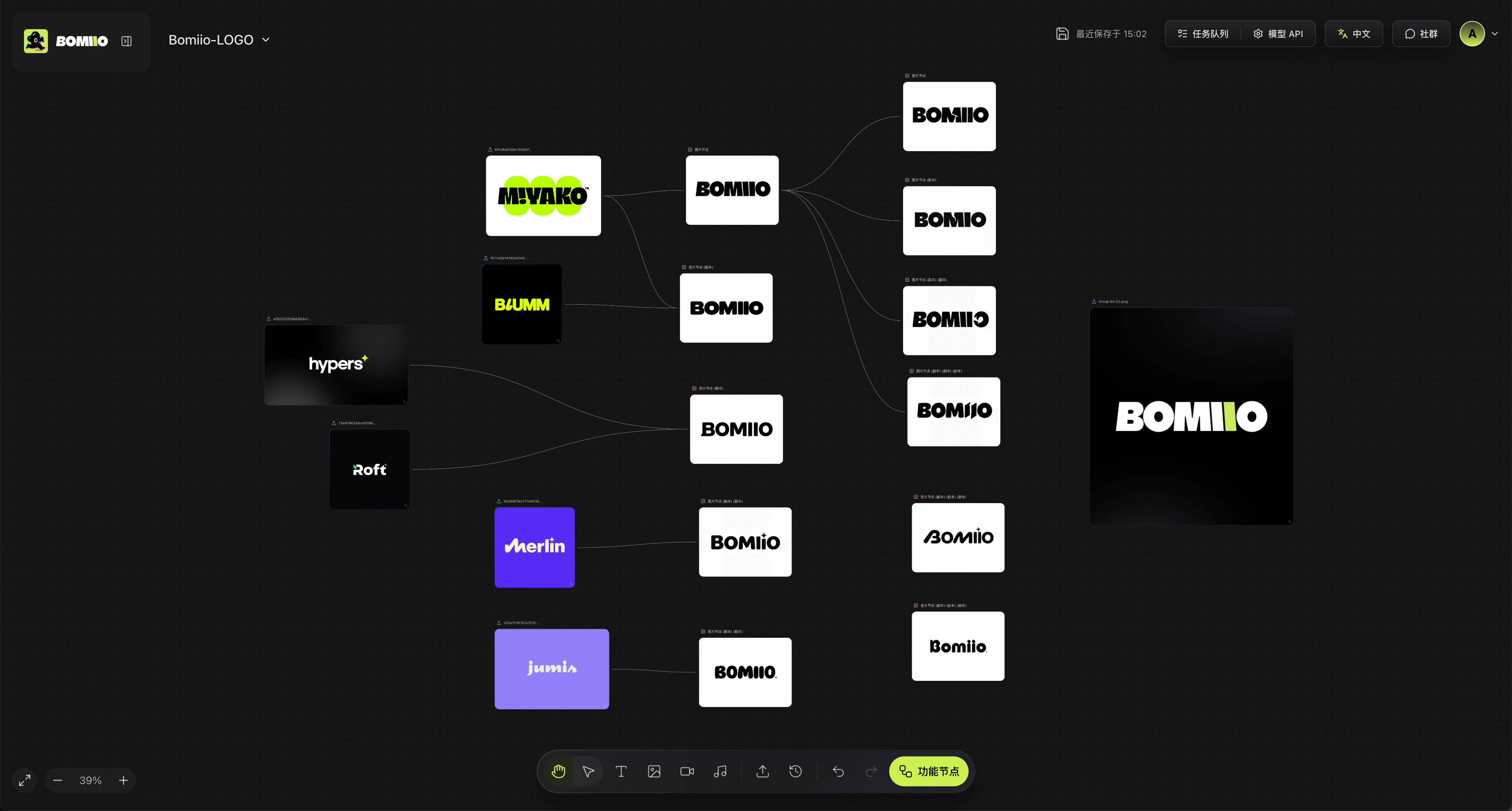
> Image nodes can chain together reference images, generated results, and different versions, which is useful for comparing directions and converging on a visual approach.
### Video nodes
- Used for video generation.
- Can receive upstream text and images.
- The current node UI supports two video input modes, "multi-reference" and "first-and-last frame"; availability depends on the selected model's capabilities.
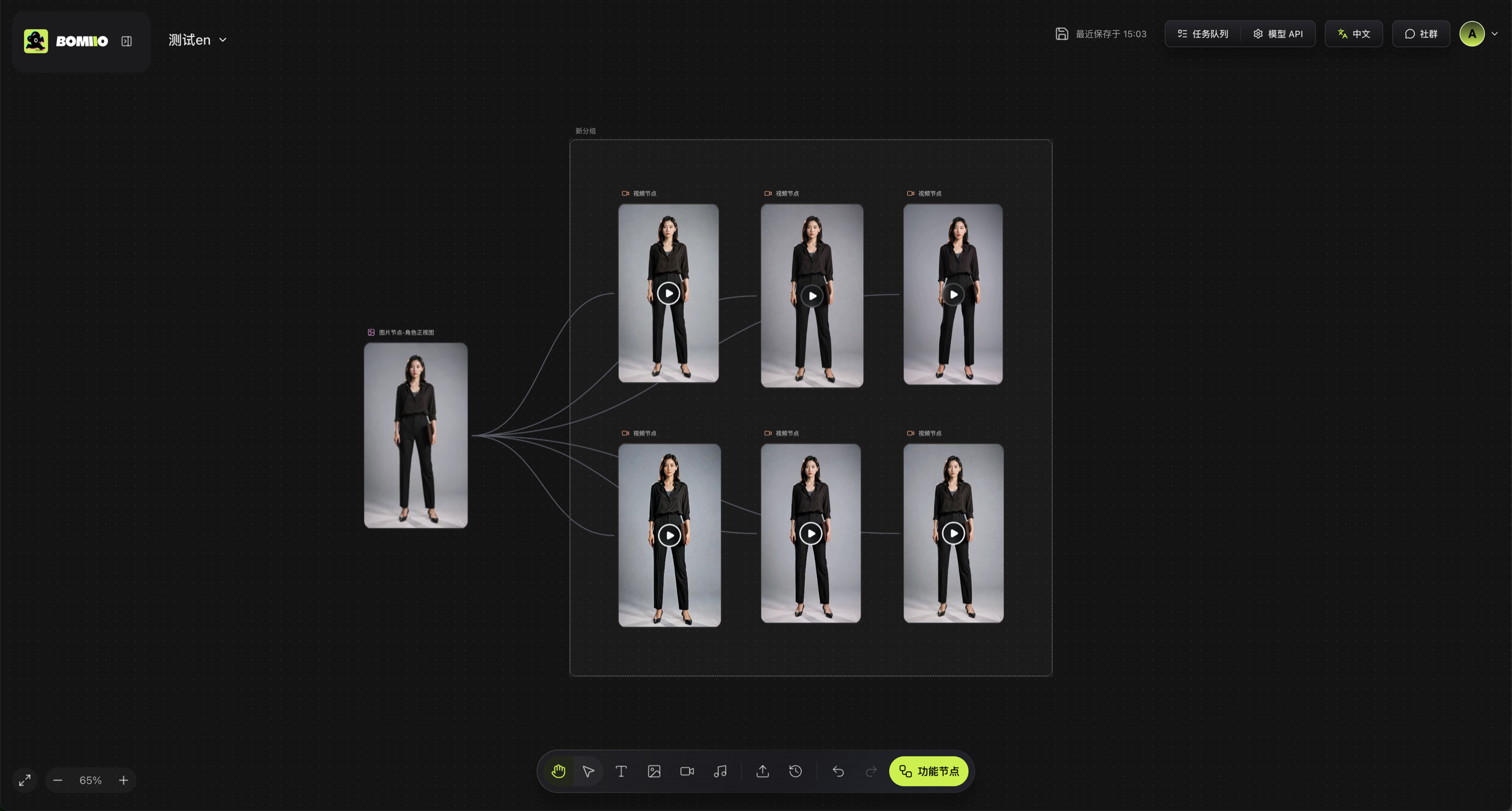
> The same upstream image can connect to multiple video nodes so you can try different models, parameters, or generation directions, then organize the results with group nodes.
### Audio nodes
- Used to generate speech audio from text.
- After connecting a text node, the upstream text is combined with the node's own input to form the generated text; image, video, and audio connections appear as references but are not transcribed directly into text.
- You can choose the currently available audio model and voice, and adjust speaking speed in Advanced Settings.
## Upload nodes
In the UI, Upload nodes are labeled simply as "Upload."
- Can hold four kinds of imported content: text, image, video, and audio.
- You can create them from the bottom Upload button, the canvas menu, by dragging files onto the canvas, or by creating them from canvas media history.
- Text is read in directly; images and videos resize the node according to the asset dimensions.
- Media files first enter the canvas as local previews, then upload in the background and are replaced with server URLs.
## Director console nodes
### Shot nodes
- Dragged in from the Director Console.
- Display shot number, description, duration, shot type, camera movement, and other information.
- When you edit the shot description in the node, the corresponding storyboard data is updated in sync.
### Asset nodes
Asset nodes come in three types:
- **Character nodes**
- **Scene nodes**
- **Prop nodes**
All three node types come from concrete variants in the Director Console, not from abstract asset entities. They share these traits:
- They can show the current variant's main image and supplemental views.
- They can receive input from upload nodes or image nodes and directly replace the corresponding view slots.
- They can generate, upload, compare differences, and then decide whether to push back to the Director Console.
The differences are:
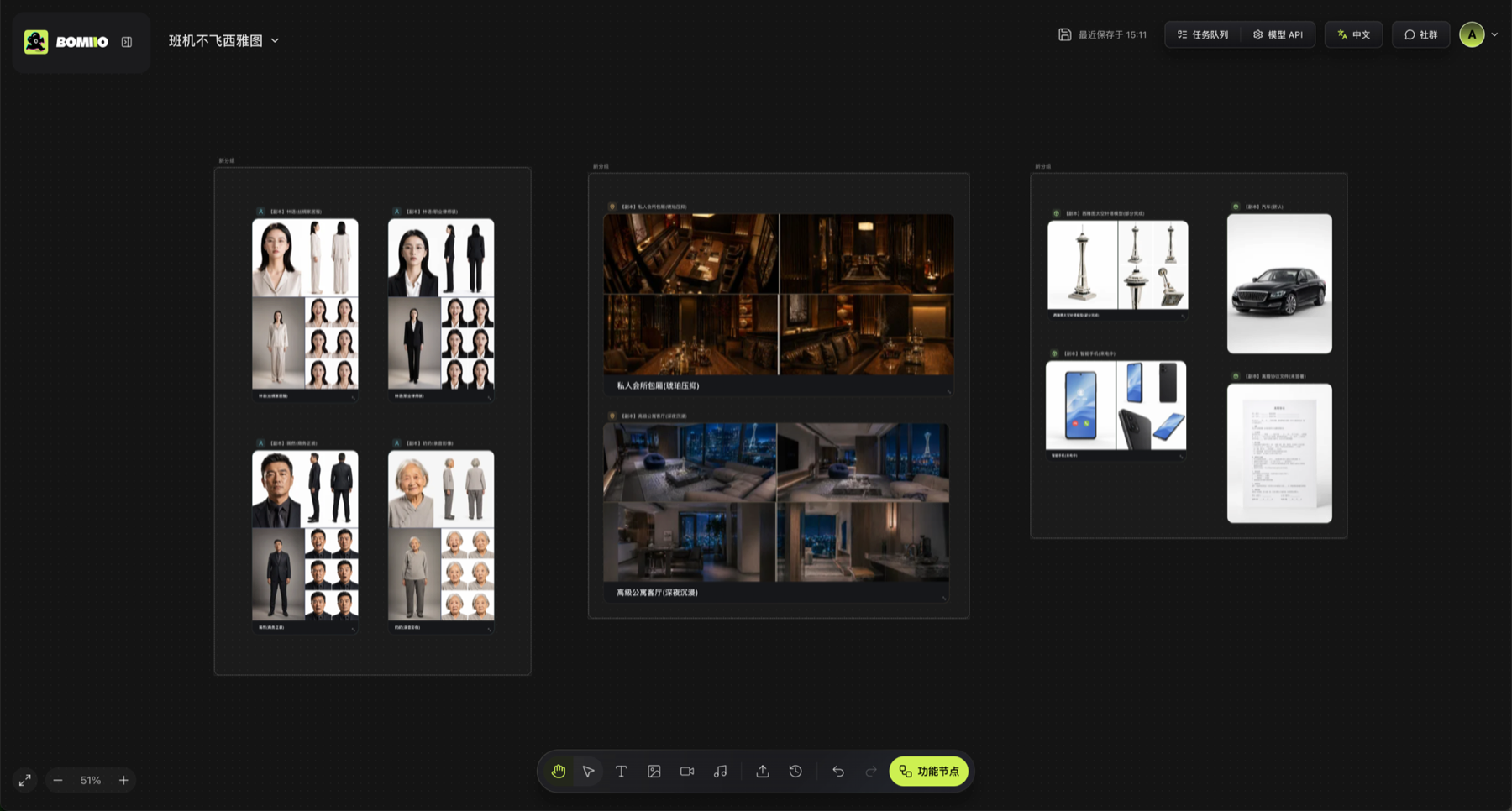
- Character nodes have a front view, multi-angle views, and expression images.
- Scene nodes have a main view, front view, back view, and side view.
- Prop nodes have a main view and multi-angle views.
> Asset nodes can be arranged by character, scene, and prop groups so you can review main images, multi-angle views, and expression variants in one place.
## Organization nodes
### Group nodes
- You must first select at least two non-group nodes, then create the group from the right-click menu.
- After creation, the selected nodes are wrapped into the same group.
- Grid layout and horizontal layout are currently supported.
- Nodes dragged into the group become child nodes of that group; when dragged out, they return to normal canvas nodes.
## How to choose a node type
- To import existing assets: start with an [Upload node](/docs/bomitv/canvas/uploads-history.md).
- To make one result drive the next: see [Connections and Upstream References](/docs/bomitv/canvas/connections.md).
- To modify characters, scenes, or props and commit them back to the Director Console: see [Asset Refinement and Push-back](/docs/bomitv/canvas/asset-workflow.md).
- To organize structure instead of adding new capabilities: use group nodes.
## Continue reading
- [Connections and Upstream References](/docs/bomitv/canvas/connections.md)
- [Uploads and Media History](/docs/bomitv/canvas/uploads-history.md)
- [Asset Refinement and Push-back](/docs/bomitv/canvas/asset-workflow.md)