# Infinite Canvas Overview
Within AstraFlow, organize the creative flow of the current canvas with nodes, connections, and Director Console assets.
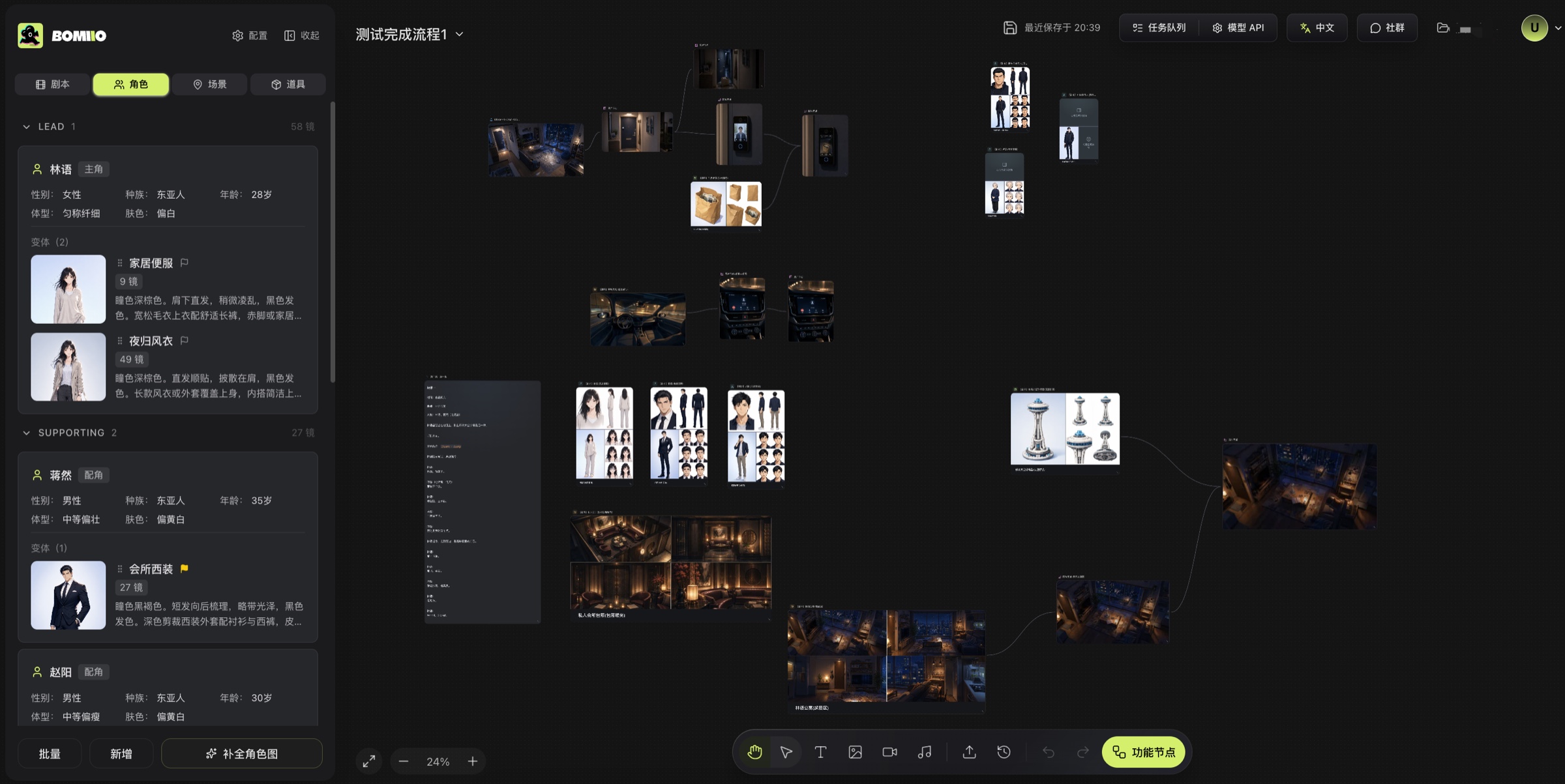
Infinite Canvas is the workspace in Bomiio for text, image, video, audio, and Director Console assets. Here you can freely place nodes, connect upstream inputs, make temporary refinements to director assets, and push the result back as a new variant or merge it into the original variant.
## What this canvas can do
- Chain generation flows together with text, image, video, and audio nodes.
- Put local files and canvas media history into an Upload node as downstream inputs.
- Drag in shots, characters, scenes, and props from the Director Console to add images, connect nodes, and make adjustments directly on the canvas.
- Group multiple nodes to organize the canvas by theme or stage.
- Iterate through different versions using node history, undo/redo, and the task queue.
```mermaid actions={false}
flowchart LR
A["Upload / Text / Asset nodes"] --> B["Connect upstream inputs"]
B --> C["Generate with image / video / audio nodes"]
C --> D["Review history versions and current output"]
D --> E["Continue refining asset nodes"]
E --> F["Push to the Director Console"]
F --> G{"Preservation mode"}
G -->|Safe| H["Create as a new variant"]
G -->|Overwrite| I["Merge into the original variant"]
```
## Primary entry points
- **Bottom toolbar**: add text, image, video, and audio nodes; open Upload and History; switch between hand and selection modes; undo and redo.
- **Double-click empty canvas space**: open the context menu to add nodes or upload assets.
- **Left-side Director Console**: drag shots, characters, scenes, and props onto the canvas.
- **Drag a node output point to empty space**: open the "Generate from this node reference" quick menu and add the next node directly.
## How nodes enter the canvas
- Text, image, video, and audio nodes: create them from the bottom toolbar or the empty-canvas menu.
- Upload nodes: create them from bottom-bar Upload, the empty-canvas menu, by dragging files onto the canvas, or by choosing media history in the upload dialog.
- Shot nodes: drag them in from the Director Console script or storyboard area.
- Asset nodes: drag character, scene, and prop variants from the Director Console.
- Group nodes: create them from the right-click menu after box-selecting or multi-selecting nodes.
> The left-side Director Console manages scripts and assets; the central canvas lets you freely place assets and asset nodes while using connection lines to organize generation relationships; the bottom toolbar creates nodes, uploads assets, and handles undo and redo, while the lower-left corner adjusts canvas zoom.
## Recommended usage
- Start with an Upload node or a text node to build the smallest viable chain, then add image, video, and audio nodes step by step.
- Adjustments on asset nodes are best for "targeted derivatives of the current canvas"; when you decide to commit them to the Director Console, choose [create as a new variant or merge into the original variant](/docs/bomitv/canvas/asset-workflow.md).
- Keep important experiments as new variants first; merging overwrites the Director Console's original data and cannot be undone.
## Continue reading
- [Node Types](/docs/bomitv/canvas/nodes.md)
- [Connections and Upstream References](/docs/bomitv/canvas/connections.md)
- [Asset Refinement and Push-back](/docs/bomitv/canvas/asset-workflow.md)
- [Uploads and Media History](/docs/bomitv/canvas/uploads-history.md)
- [Actions and Shortcuts](/docs/bomitv/canvas/operations-shortcuts.md)