# Asset Editing
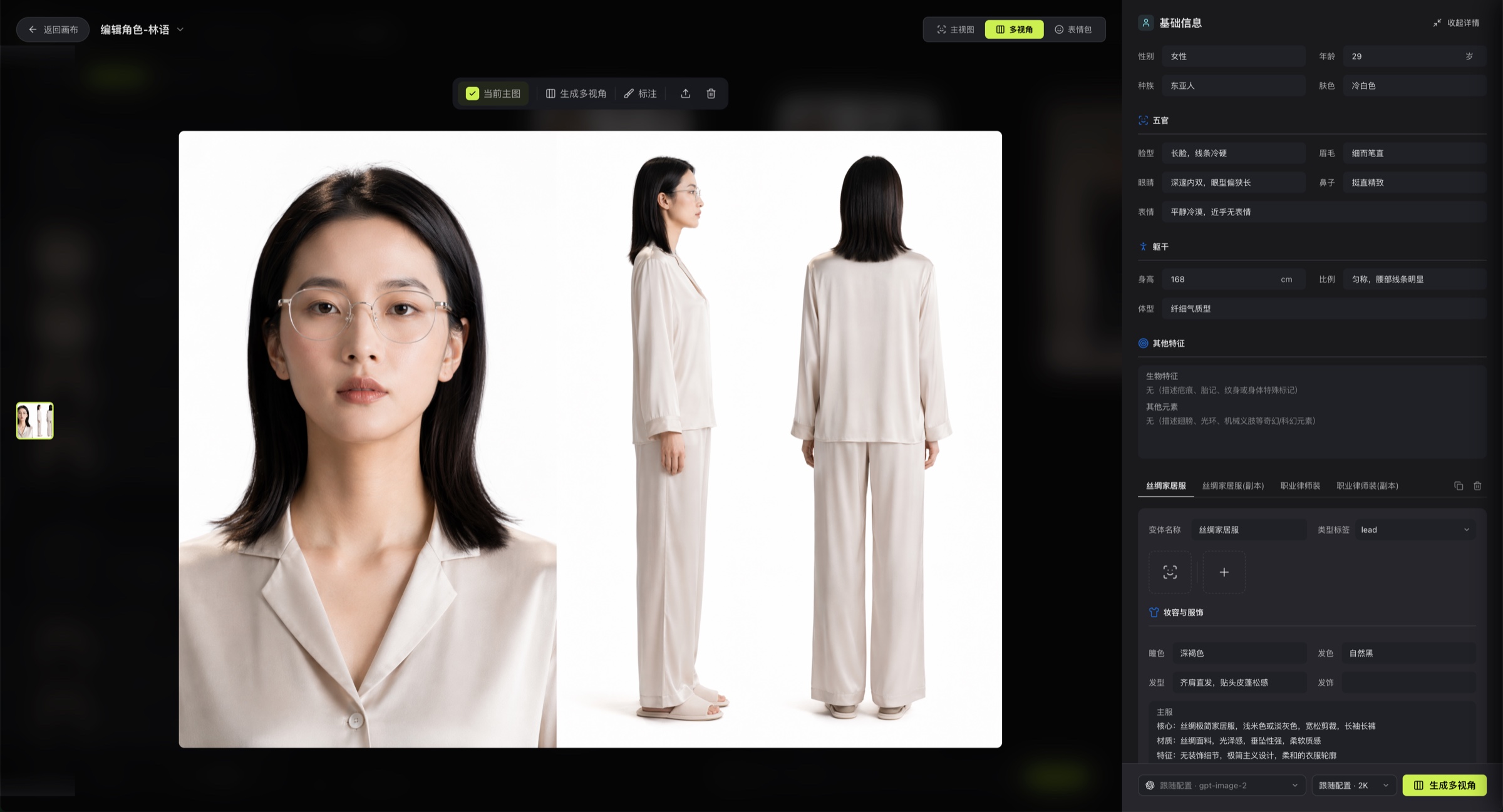
Open the full-screen editor to maintain structured descriptions, reference images, image history, and view generation for each variant.
The asset editor is the refinement center for characters, scenes, and props. You can open it from the asset list or from a scene group or shot reference relationship.
## Editor layout
1. Characters: gender, age, body type, skin tone, facial features, biological traits, makeup, clothing, and more.
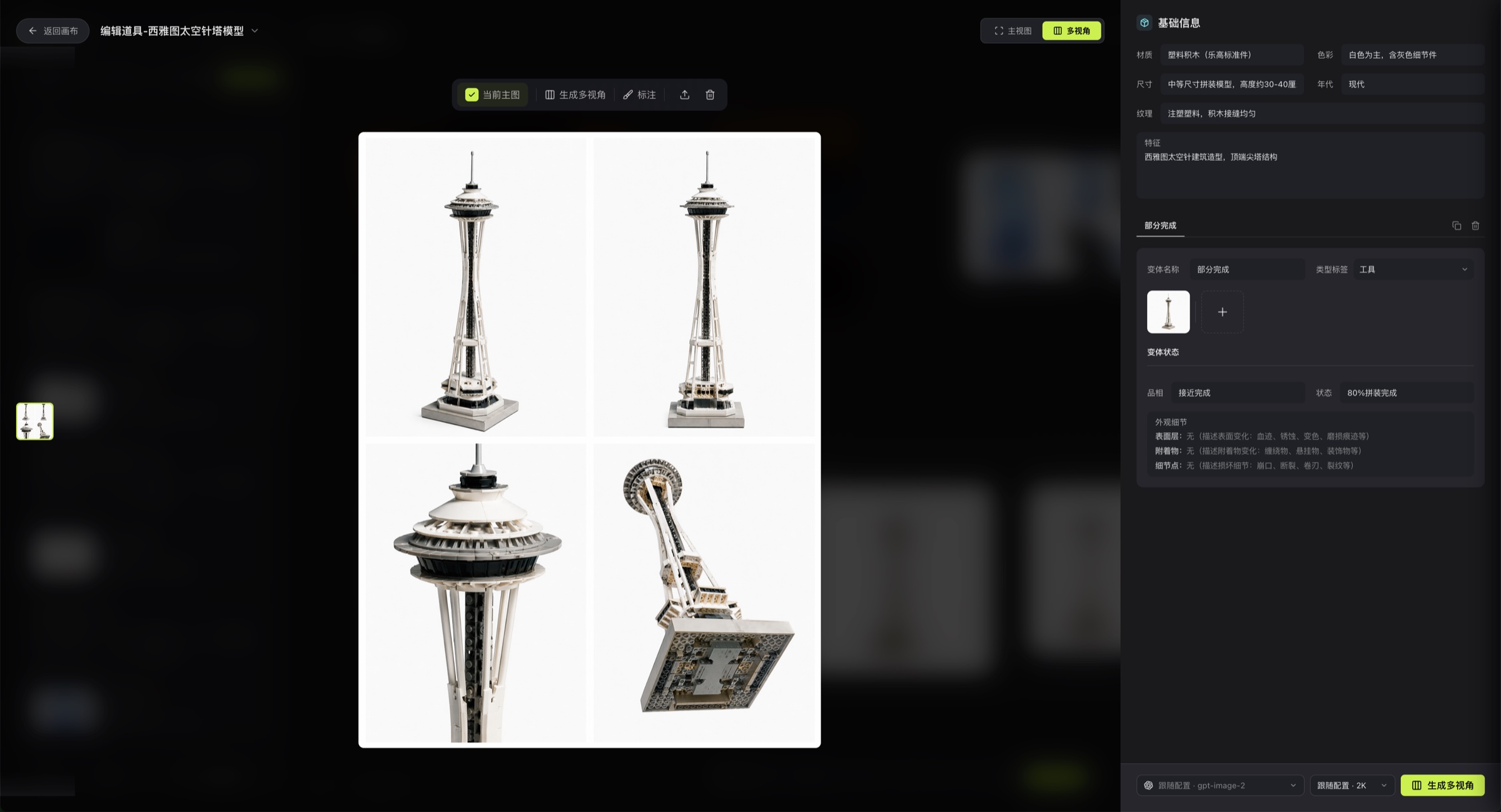
2. Props: material, color, size, era, texture, condition, and damage details.
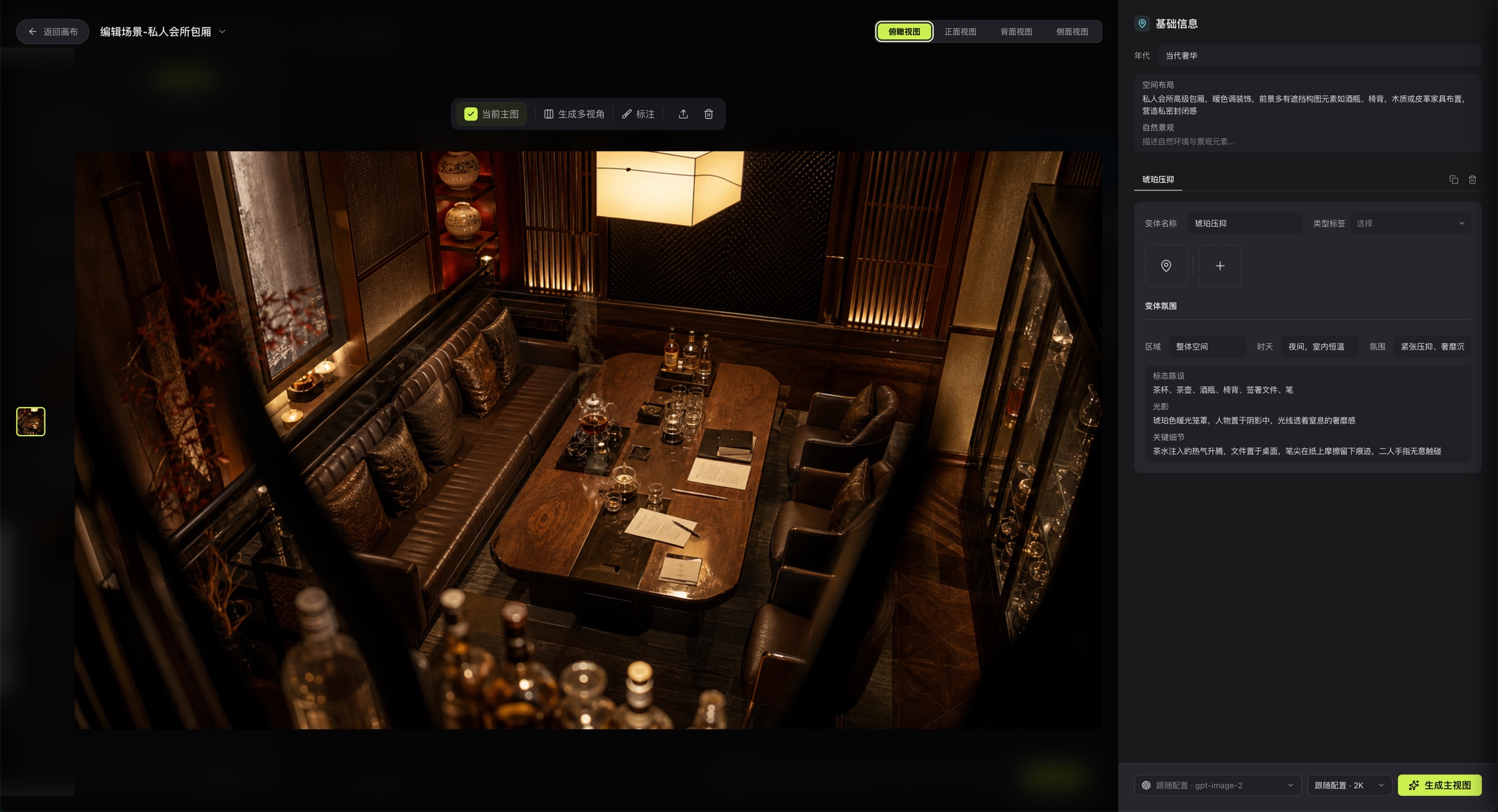
3. Scenes: era, spatial layout, natural environment, time and weather, mood, and key details.
The full-screen editor currently has three sections:
- Left: image history and thumbnail rails for different views.
- Middle: the current large image preview, where you can switch, upload, delete, and annotate.
- Right: basic information, structured fields, reference images, variant tabs, and the generation toolbar.
The editor saves before returning to the canvas.
## Views supported by each asset type
- Characters: main view, multi-view, expression set.
- Props: main view, multi-view.
- Scenes: top view, front view, back view, side view.
After you generate or add an additional view, the editor shows the corresponding view switcher at the top. Scenes can switch among four views, characters can switch among "Main View / Multi-View / Expression Set", and props can switch among "Main View / Multi-View". If no additional view exists yet, start generation from the main image first.
## Structured fields
The editor does more than change a single description. It breaks information into fields that you maintain directly.
The field groups currently implemented include:
- Characters: gender, age, body type, skin tone, facial features, biological traits, makeup, and clothing.
- Props: material, color, size, era, texture, condition, and damage details.
- Scenes: era, spatial layout, natural environment, time and weather, mood, and key details.
These fields feed later image generation and asset display.
## Variants and tags
Inside the editor you can directly:
- Switch between variants under the current entity.
- Duplicate the current variant.
- Delete the current variant.
- Rename the variant.
- Change the character tag or prop type tag.
Character and prop tags affect grouping in the list pages.
## Reference images
The right-side information area supports two types of reference:
- ID reference images: supported for characters, scenes, and props; they can be matched automatically or uploaded locally.
- Normal reference images: up to 6 images for extra appearance details.
These reference images are not a separate asset library. They are bound to the current variant.
## Image history and recovery
The left thumbnail rail shows image history for the current view. You can:
- Preview older images.
- Switch an older image back to the current main image.
- Delete an older image.
- Reassign the current main image's relationship to a multi-view, expression set, or scene side view.
That is why you do not have to overwrite old images every time. Keeping history is often safer.
## Preview area actions
The middle preview area currently supports:
- Uploading the current view image.
- Deleting the current view image.
- Opening annotation for the current image.
- Overwriting the current image with the annotation result, or saving it as a new image.
- Triggering multi-view, expression-set, or scene additional-view generation directly from the main image.
## Local override generation settings
In addition to the canvas default configuration, the bottom toolbar lets you save a local image-generation setup for all variants under the current entity:
- The model can follow the configuration or be manually overridden.
- The image size can follow the configuration or be changed separately to 1K, 2K, or 4K.
These overrides apply to all variants under the current entity and keep the generation rules consistent for that asset.
## Linked with scene groups
If you enter the editor from a scene-group reference, the right side shows a "Sync to Current Scene Group" hint panel. Click Apply to switch the matching character, scene, or prop in that scene group to the variant you are editing now.
## Style templates and prompt presets
The asset editor does not open the style templates itself, but it uses the style templates and prompt presets saved in [Director Console Settings](/docs/bomitv/director/configuration.md) for the current canvas. So if the same asset still looks wrong after several edits, check the configuration page again.
## Related pages
- [Director Console Settings](/docs/bomitv/director/configuration.md)
- [Asset Management](/docs/bomitv/director/assets.md)
- [Storyboard and Scene Groups](/docs/bomitv/director/storyboard.md)