# Asset Management
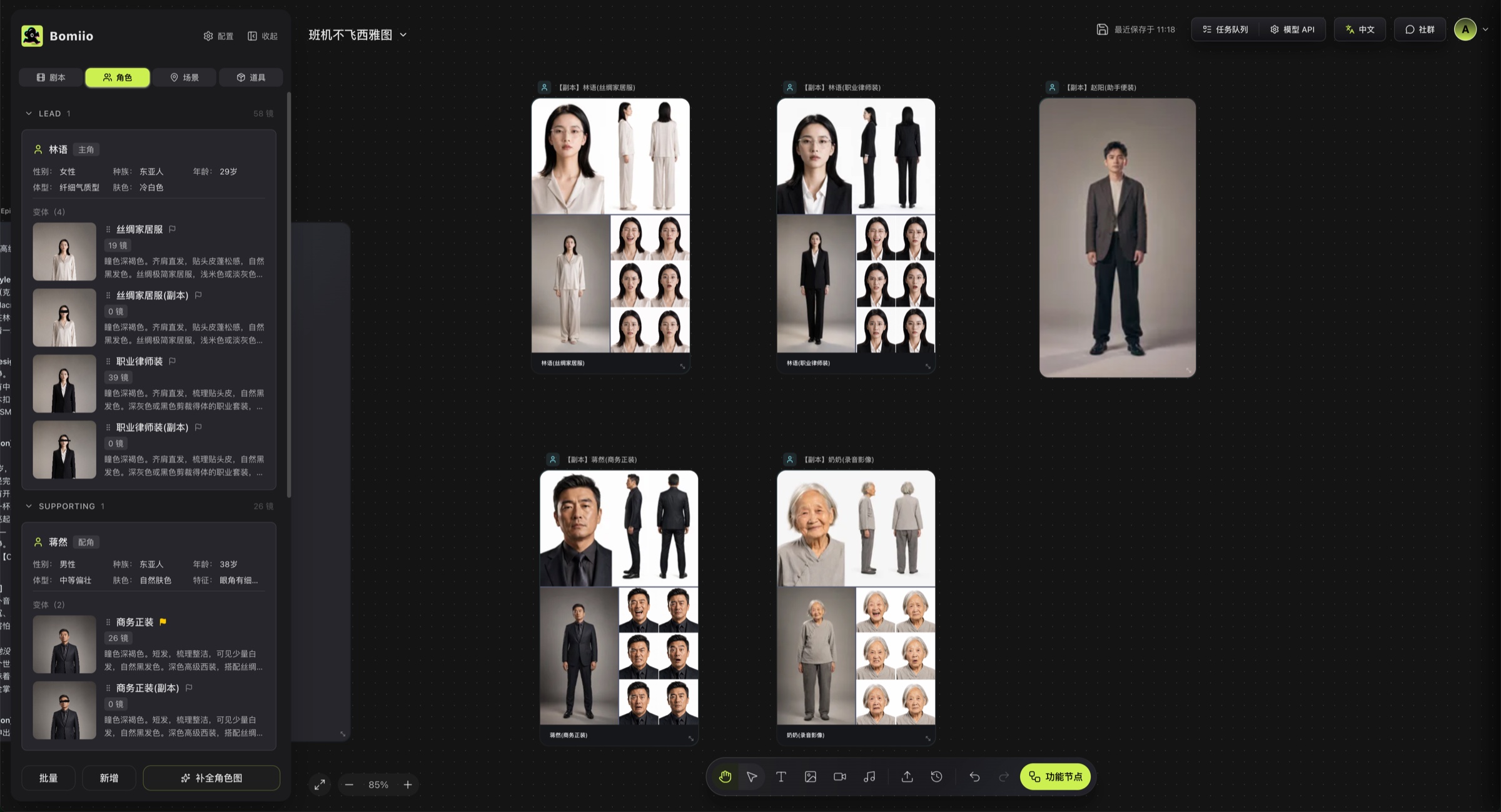
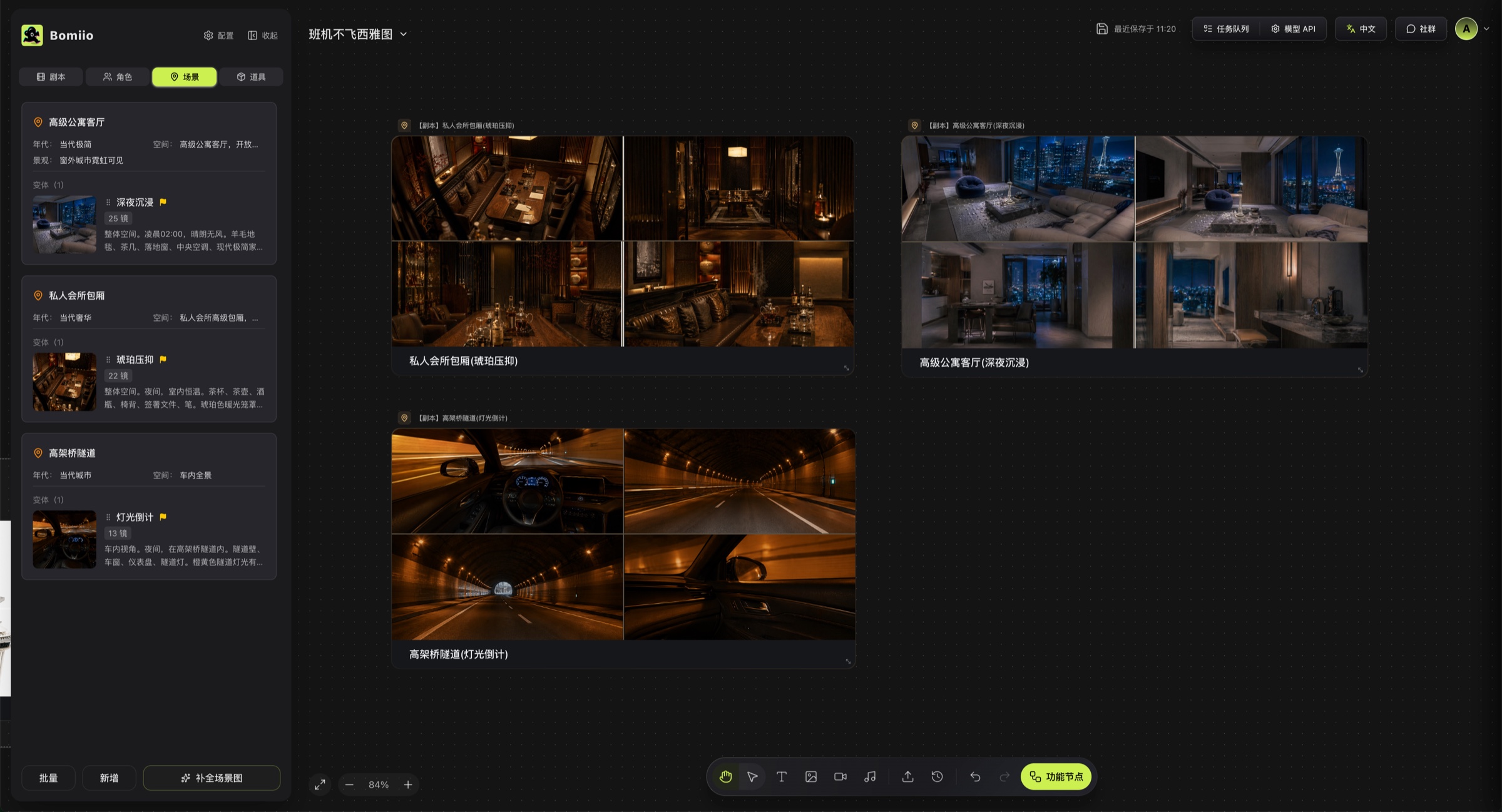
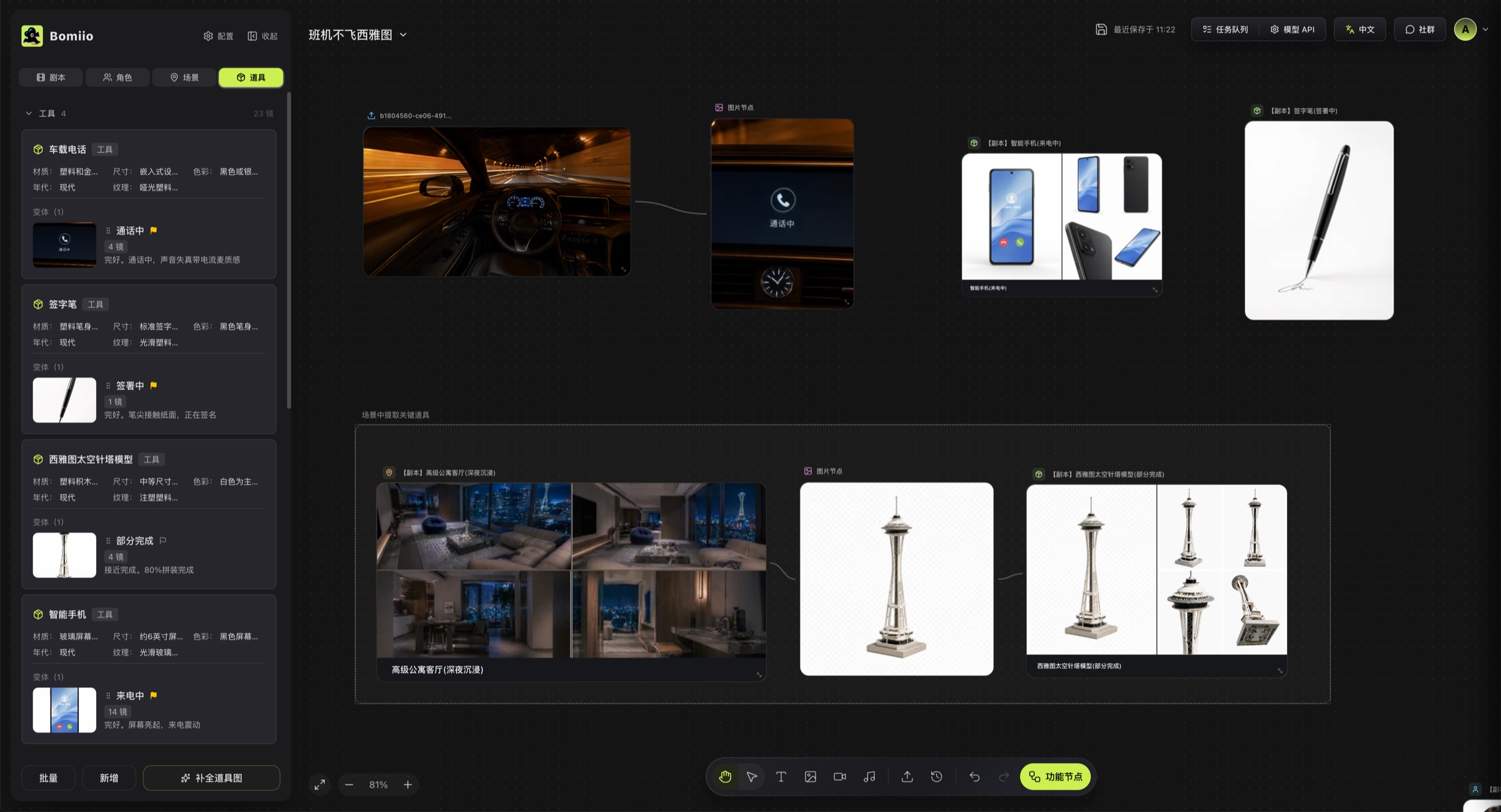
Organize variants, fill missing main images, and drag the right assets onto the canvas for continued creation from the Characters, Scenes, and Props tabs.
The asset tabs are the Director Console's daily work area. Characters, scenes, and props share the same core logic, but each type uses a slightly different grouping and view-generation model.
## The three asset tabs
1. Characters: grouped by character tag, showing reference shot counts and character variants.
2. Scenes: listed by scene card, showing scene variants.
3. Props: grouped by type tag, showing reference shot counts and prop variants.
## What the list page can do
- Check whether an asset is still syncing, generating, queued, or failed.
- Collapse or expand character and prop groups by tag.
- View the reference shot count for each entity.
- Drag asset variants onto the canvas.
- Edit, duplicate, delete, mark as latest, or regenerate a single variant.
- Re-extract characters, scenes, and props.
## Common variant actions
The high-frequency actions implemented now include:
- Edit a variant.
- Duplicate a variant.
- Delete a variant.
- Merge variants.
- Move variants between entities.
- Split character and prop variants. Scene variants do not support split actions yet.
- Mark a variant as the latest main version.
- Restore an older image from image history.
- Upload a main image.
- Trigger AI generation of a main image.
Different asset types have different fields, but "variant" is always the real working unit for images and descriptions.
## Batch mode
The bottom action bar supports two modes:
- Normal mode: enter batch mode and fill missing main images.
- Selection mode: select all, exit, delete selected, regenerate selected.
## When to return to Assets first
Fix assets first, then continue with storyboards or video, if any of the following is true:
- The main character image is unstable.
- The scene's time of day, weather, or lighting direction is obviously wrong.
- A high-frequency prop is inconsistent across shots.
- Many referenced assets still do not have main images before batch generation for scene groups.
## Effect of the read-only lock
When script breakdown is in progress, the asset page becomes fully read-only and shows a banner. At that point:
- You cannot upload, delete, or edit.
- You cannot submit AI generation requests.
- You cannot change the default image.
Wait until the current breakdown stage ends before making manual corrections.
## Continue reading
- [Asset Editing](/docs/bomitv/director/asset-editing.md)
- [Batch Generation](/docs/bomitv/director/batch-generation.md)
- [Storyboard and Scene Groups](/docs/bomitv/director/storyboard.md)