# Batch Generation
Use the fewest manual clicks possible to fill missing asset main images and empty scene-group still frames, but first make sure the input assets are stable enough.
The Director Console already supports two high-frequency batch actions: filling asset main images and filling scene-group still-frame grids.
## Basic principles of batch generation
```mermaid actions={false}
flowchart TD
A["Confirm the configuration and asset descriptions first"] --> B{"Is the missing main image on an asset?"}
B -->|Yes| C["Batch fill main images from the asset page"]
B -->|No| D{"Are the missing still frames on a scene group?"}
D -->|Yes| E["Batch-generate still-frame grids from the script page"]
D -->|No| F["Refine shots or variants one by one"]
```
If the character, scene, or prop descriptions themselves are still unstable, do not rush to run the batch flow.
## Type 1: batch fill assets
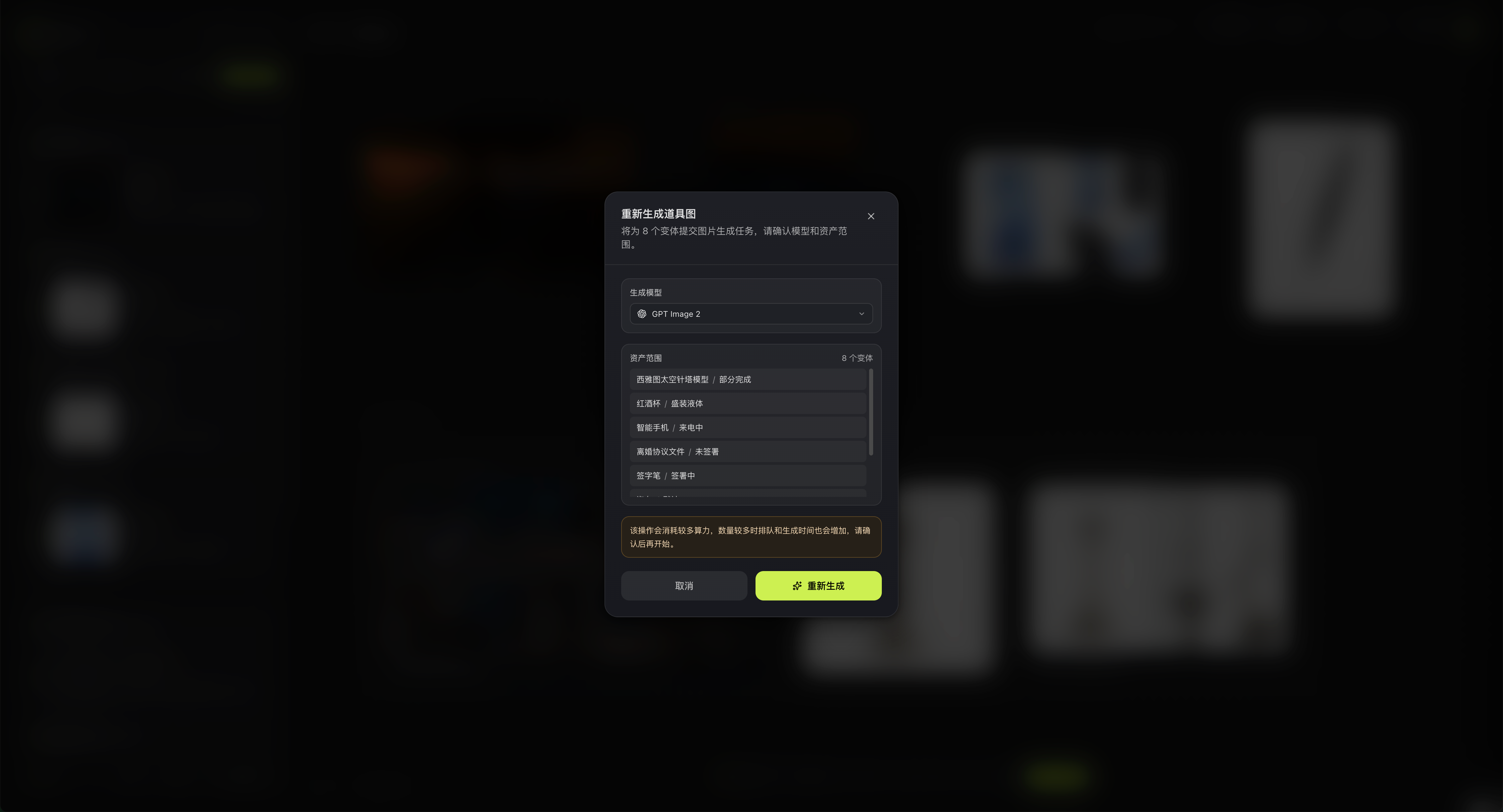
At the bottom of the Characters, Scenes, and Props tabs, there is a "Fill Main Images" entry. It automatically scans the current list for variants that do not have a main image.
The current flow is:
1. Enter an asset tab.
2. Click "Fill Character Images", "Fill Scene Images", or "Fill Prop Images" at the bottom.
3. Review which variants will be processed in the confirmation dialog.
4. Choose the image model for this run.
5. Submit generation.
After entering "Batch" mode, you can also:
- Select multiple variants.
- Delete the selected variants.
- Regenerate the selected variants.
## Type 2: fill missing assets by script
On the episode cards in the script list, a completed script that still has missing asset main images shows a corresponding follow-up action. It only processes asset variants that the current script actually references and that still do not have a main image.
That is safer than running blindly across all assets during the wrap-up stage.
## Type 3: batch-generate still frames for empty scene groups
If the current script has already finished scene-group organization and several scene groups still have no still frames for any of their shots, the Director Console shows a batch-generation entry for still frames.
It only processes scene groups that meet all of these conditions:
- The current scene group has at least 2 shots.
- The scene-group grid is not currently generating.
- None of the shots in that scene group have still-frame images yet.
Before submission, the system also checks whether the assets referenced by this script already have main images. If any main images are missing, it blocks the batch run immediately.
## Why the run gets blocked
The following conditions currently block or make direct batch submission unsuitable:
- AstraFlow is not connected, or the Director Console settings are incomplete.
- The current script is still being broken down and the assets are under read-only lock.
- The characters, scenes, or props referenced by the shots still lack main images.
- You already know the main asset descriptions are wrong, but have not corrected them yet.
## How to watch after submission
After submission succeeds, you can watch progress from these places:
- The later status on the script card.
- The generating status on the asset card or scene-group card.
- The running, completed, and failed records in the task queue.
If only some items fail, retry the failed items first. Do not rerun the whole batch from scratch.
## Recommended pacing
1. Fill the main character, core scenes, and high-frequency props first.
2. Then run batch asset filling.
3. Spot-check a few key scene groups.
4. After the direction is correct, batch-generate still frames for empty scene groups.
## Related pages
- [Director Console Settings](/docs/bomitv/director/configuration.md)
- [Asset Management](/docs/bomitv/director/assets.md)
- [Storyboard and Scene Groups](/docs/bomitv/director/storyboard.md)