# Director Console Settings
Confirm AstraFlow is connected first, then choose the configuration items required for script, image, and video generation for the current canvas.
Director Console settings are a canvas-level setting. They determine which models and parameters the current canvas uses by default for script breakdown, still-frame generation, and video creation.
## Prerequisites
Director Console settings depend on AstraFlow. Creators only need to connect an AstraFlow API key in Bomiio; this page does not ask for extra model-provider information.
If you have not connected it yet, finish:
- [Connect AstraFlow](/docs/bomitv/getting-started/astraflow.md)
## How to open it
1. Enter any canvas.
2. Expand the Director Console on the left.
3. Click "Configuration" in the upper-right corner of the title bar.
If the current canvas does not have complete settings yet, clicking "Add Script" on the script list page also sends you here first.
## Configuration items
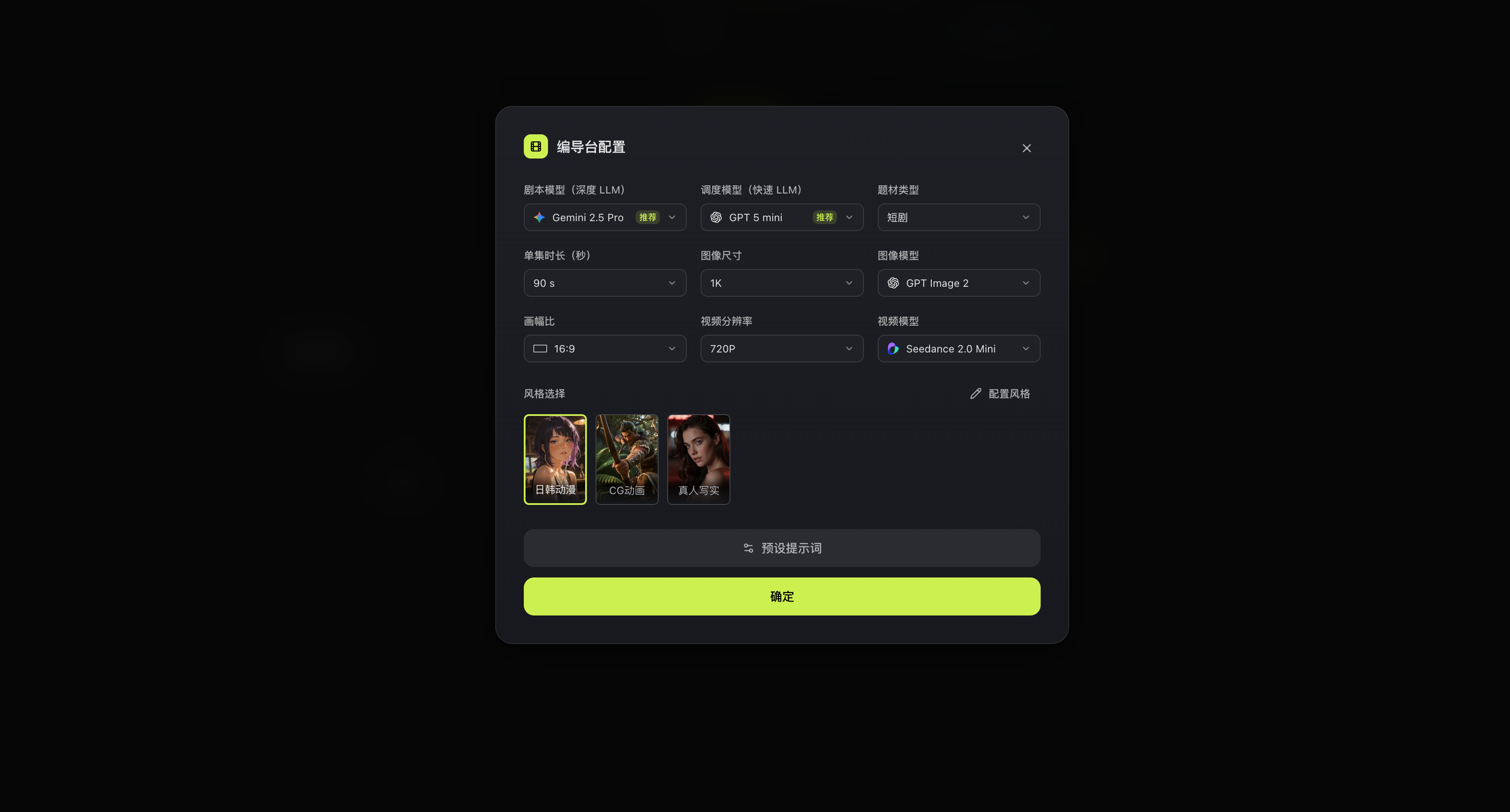
The configuration dialog currently includes these fields:
- Script model: used for script breakdown and structured output.
- Orchestration model: used for orchestration tasks during breakdown.
- Content format: currently supports short drama, TVC, and MV.
- Episode duration: 90, 120, 160, or 180 seconds.
- Image size: 1K, 2K, or 4K.
- Image model: used for generating asset main images, still frames, and other images.
- Aspect ratio: 16:9, 9:16, 1:1, or 4:3.
- Video resolution: 720P or 1080P.
- Video model: used for later video creation.
- Style templates: currently built-in Japanese/Korean anime, CG animation, and live-action realism.
Whether a model is available, and which options are available, depends on the interface after the current AstraFlow API key is imported.
## Style templates
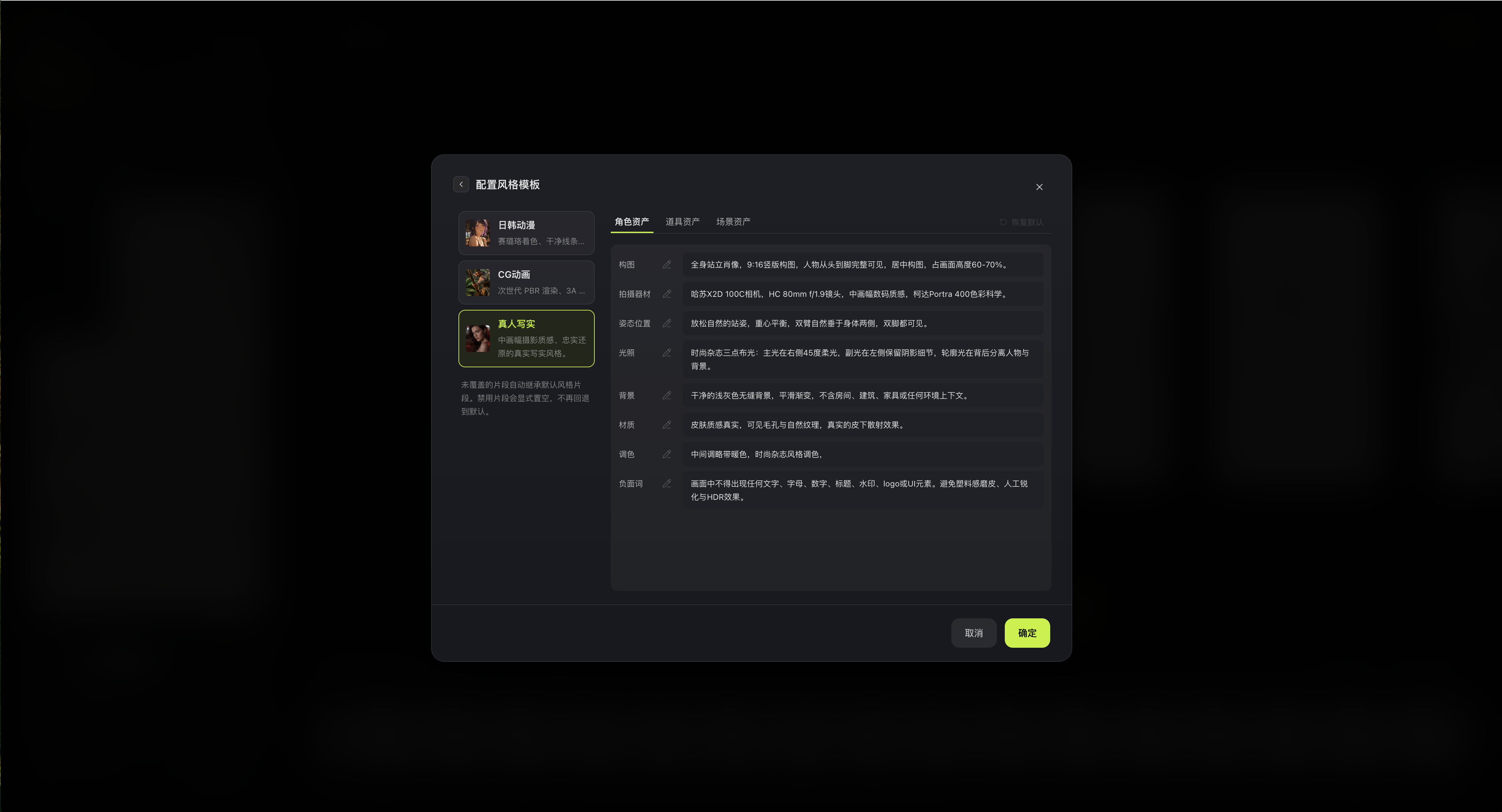
Style templates are not a single catch-all prompt. They are a set of separable style fragments. The current style-template editor supports:
- Switching among multiple built-in styles.
- Overriding fragments separately for characters, props, and scenes.
- Editing by composition, features, pose position, lighting, background, material, color grading, negative terms, and other dimensions.
- Explicitly disabling a single fragment.
- Restoring the current object's default fragments with one click.
Anything you do not override inherits the default style fragments.
## Prompt presets
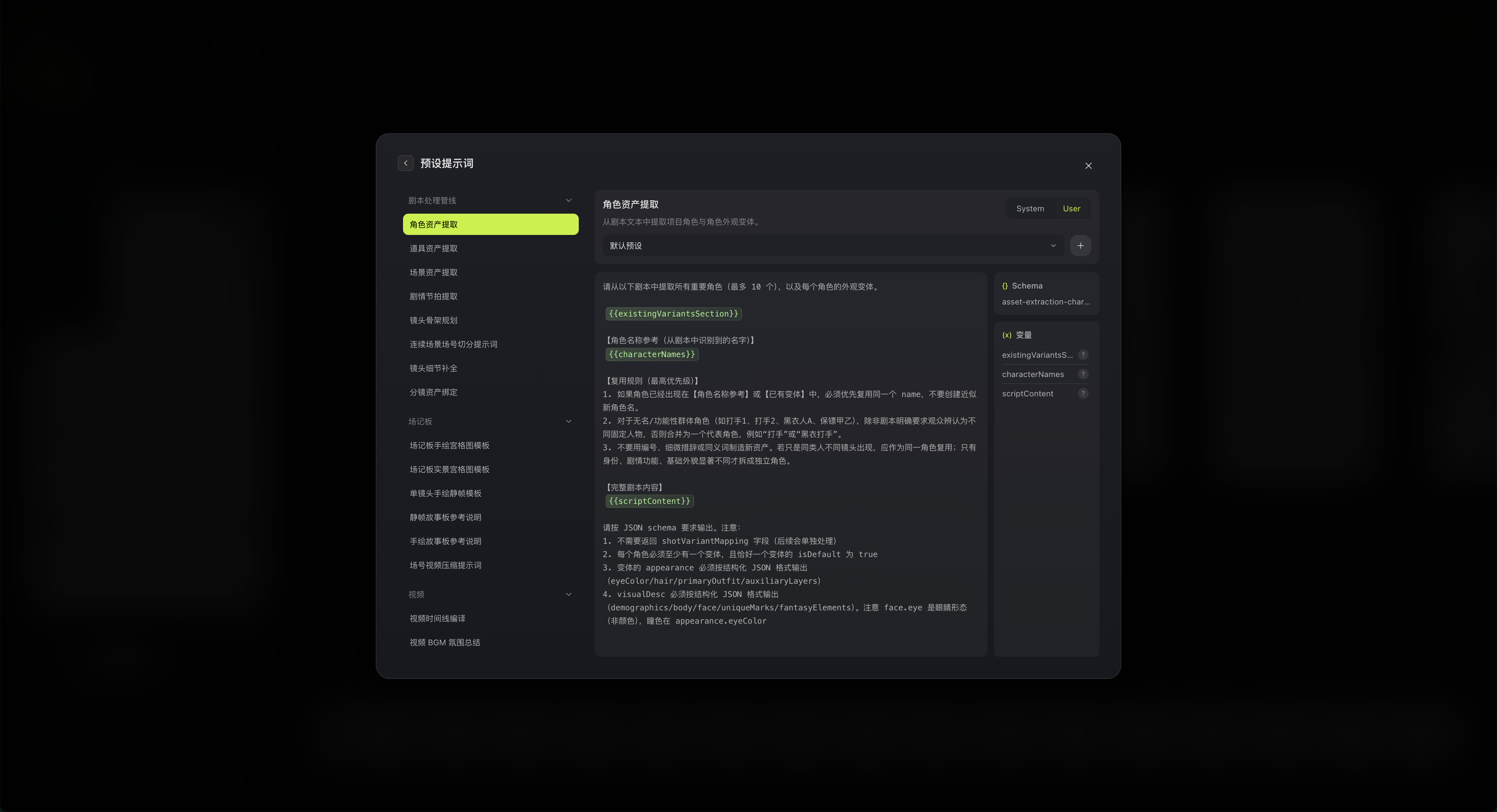
Click "Prompt Presets" to open a more detailed prompt panel. The current capabilities include:
- Switching between different prompt functions grouped by capability.
- Switching between `System` and `User` prompt types.
- Viewing the schema fields and variables associated with a function.
- Creating, saving, and deleting custom presets.
- Validating custom presets.
Default content loads with the content language, and the system default draft is used when nothing is customized.
## Save and apply
- Click "Confirm" to save the configuration to the current canvas.
- The image model and image size in the asset editor can still be overridden per variant, or set to "Follow configuration".
- If you change the AstraFlow API key, some previously selected models may become unavailable, so check the selections here again.
## Recommended check order
1. Confirm AstraFlow is connected and the model list is available.
2. Select the script model and orchestration model first.
3. Then select the image model, video model, and resolution.
4. Finally confirm aspect ratio, duration, and style templates.
## Related pages
- [Connect AstraFlow](/docs/bomitv/getting-started/astraflow.md)
- [Scripts and Breakdown](/docs/bomitv/director/scripts.md)
- [Asset Editing](/docs/bomitv/director/asset-editing.md)