# Scripts and Breakdown
Move from the episode list into a single-episode breakdown view, track script processing stages, and decide when to start asset confirmation and shot generation.
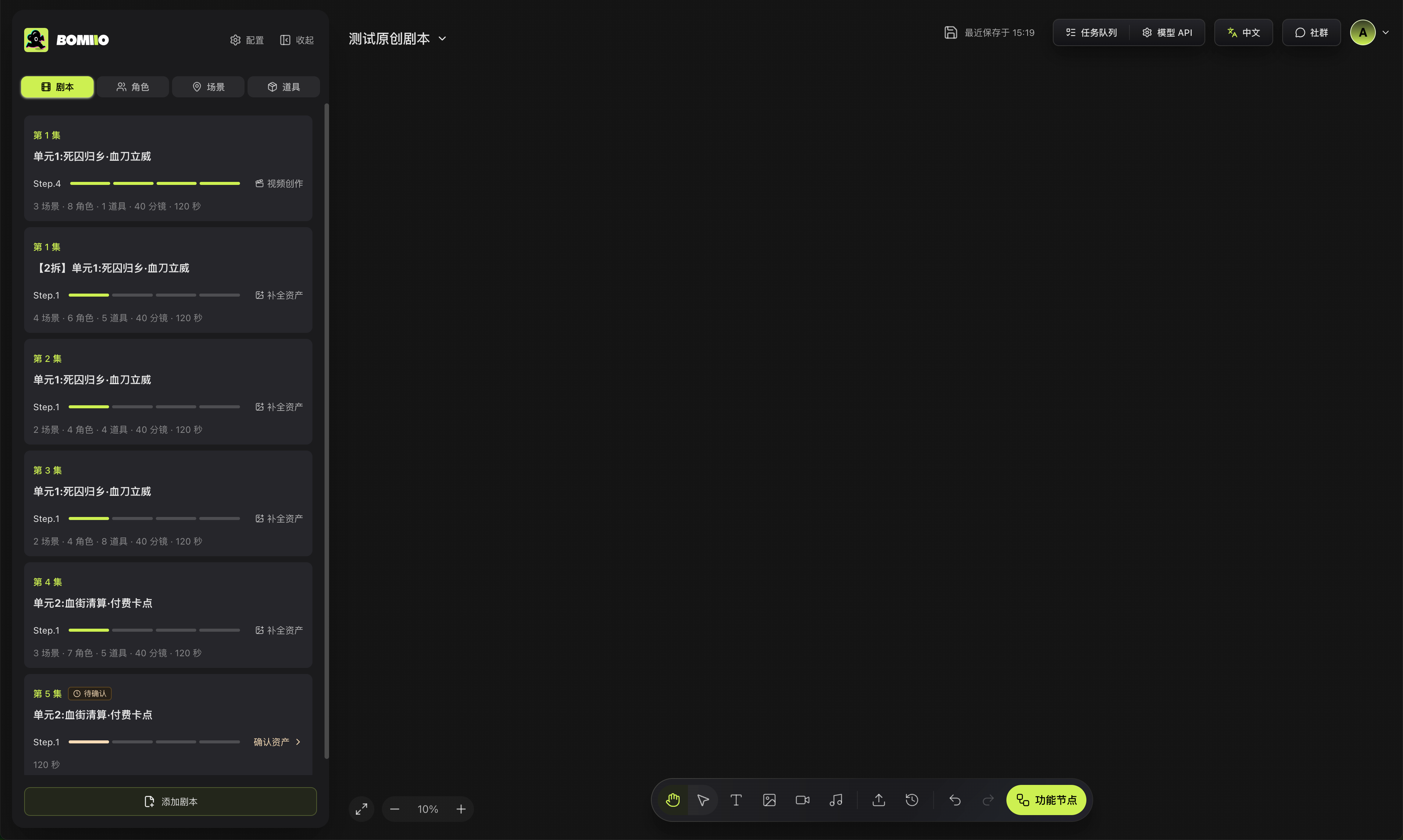
The "Scripts" tab has two levels: the episode list and the scene group / shot details for a single episode.
## What the episode list does
- Add a new script.
- View the current stage of each episode.
- Delete a script.
- Retry failed steps.
- Trigger follow-up actions such as "Fill Missing Assets", "Fill Missing Storyboards", and "Video Creation" for completed scripts.
> Each episode card shows the episode number, title, current step, asset and storyboard counts, and the next available action.
## Add a script
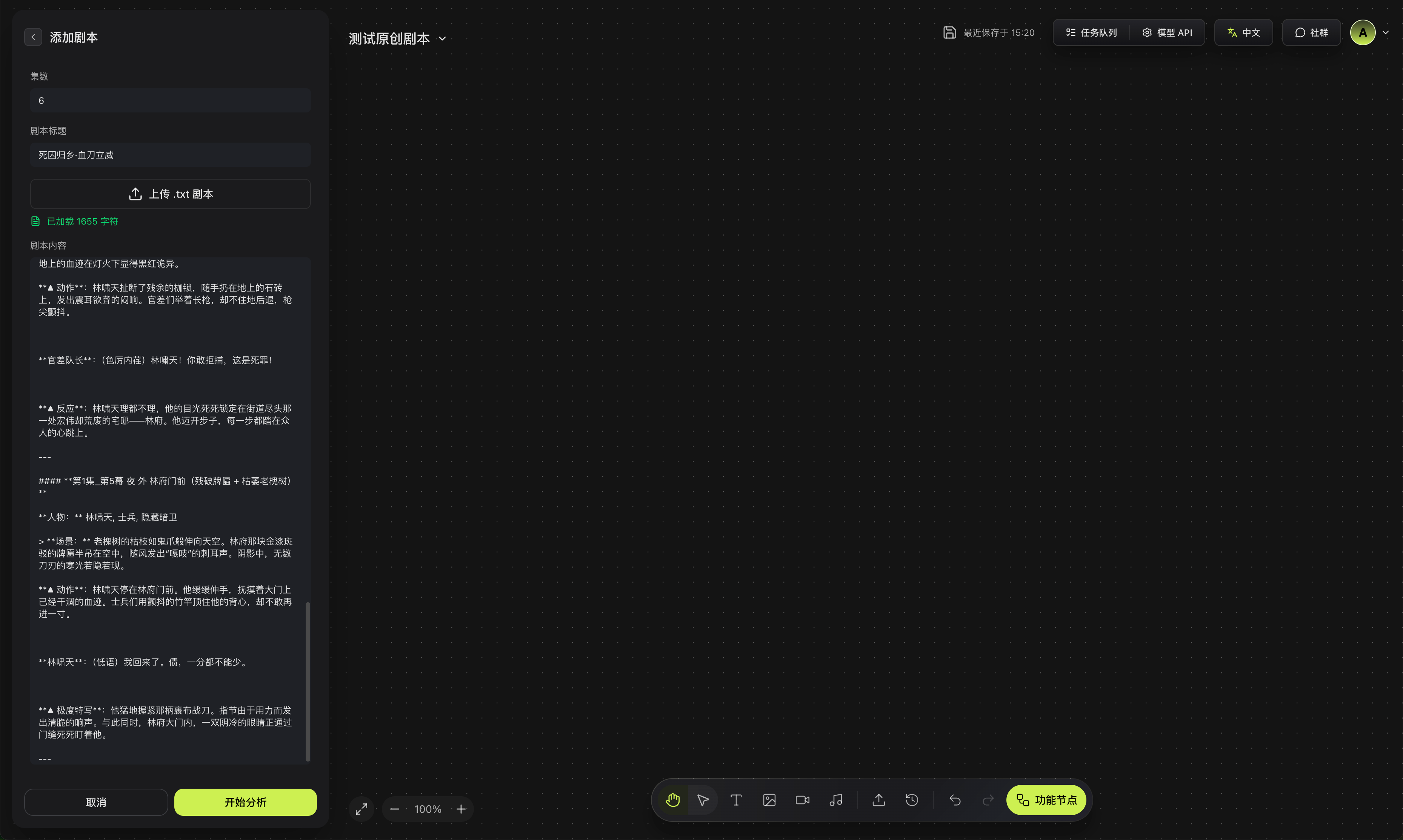
Click "Add Script" to open a lightweight form:
1. Enter the episode number.
2. Enter the script title.
3. Upload a `.txt` file or paste the body text directly.
4. Click "Analyze Script".
The upload form currently accepts `.txt` files only. If the body is empty, the submit button stays disabled.
> After uploading a file or pasting text, check the loaded character count and script content before clicking "Start Analysis".
## Processing stages
Each episode moves through multiple states, and the interface shows the current stage directly. The main stages already implemented in this project include:
- Analyze Script
- Extract Characters / Props
- Extract Scene Variants
- Bind Assets
- Split Shots
- Fill Shot Details
- Organize Scene Groups
- Failed / Needs Confirmation / Completed
You do not need to memorize the internal state names. Just continue with the current action shown on the card.
## Confirm assets and re-run breakdown
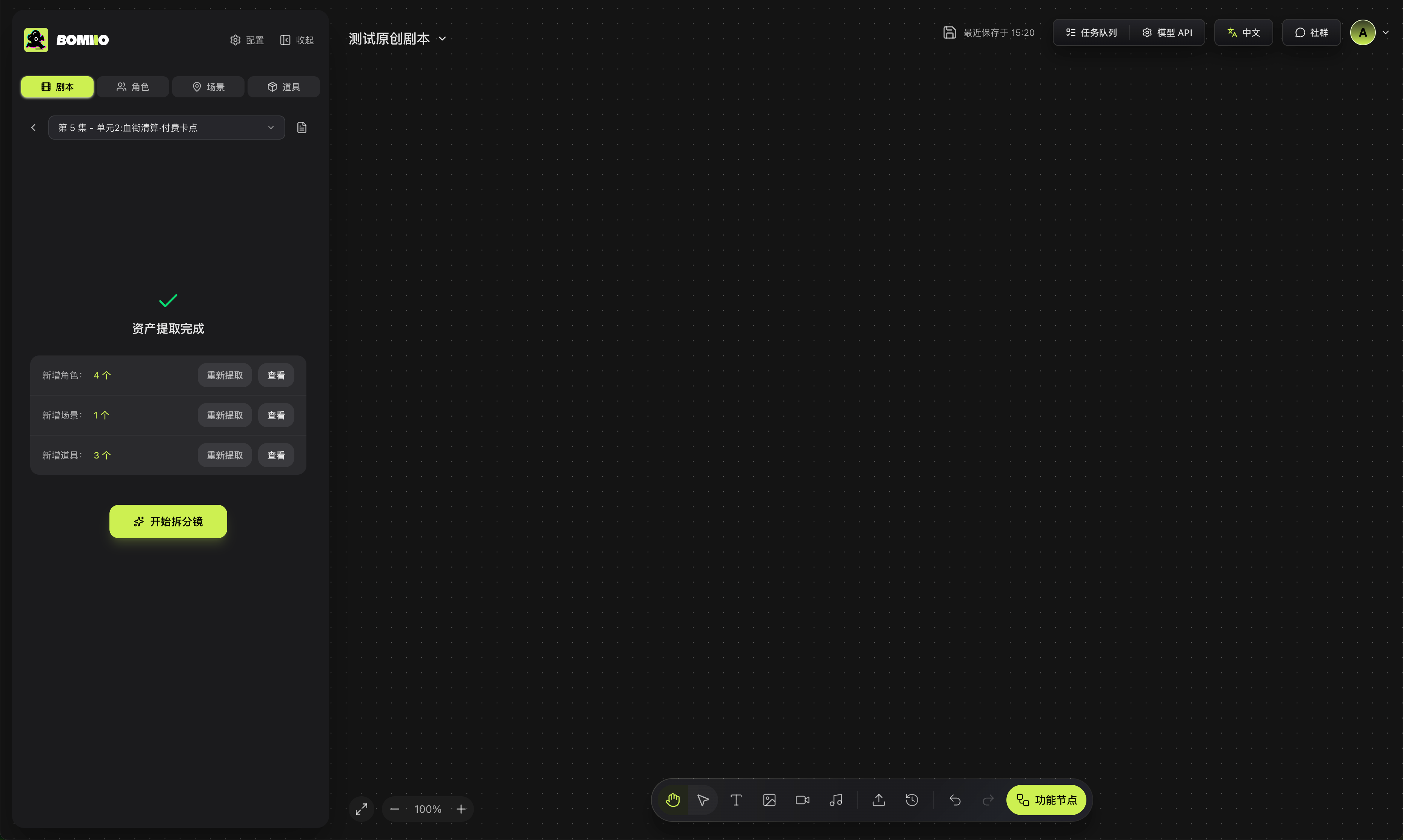
When the script reaches "Asset Extraction Complete", you can:
- Review the new characters, scenes, and props added for this episode.
- Run "Re-extract" on characters, scenes, and props.
- Click "Confirm Assets" to continue; confirmation moves the script into the later shot breakdown flow.
The single-episode detail page also provides "Resplit Shots (Based on Current Assets)". Use that after manually correcting assets so the system can reorganize shots using the latest asset set.
> After asset extraction completes, you can view or re-extract characters, scenes, and props separately. Confirm the result before starting shot breakdown.
## After you enter a single-episode detail view
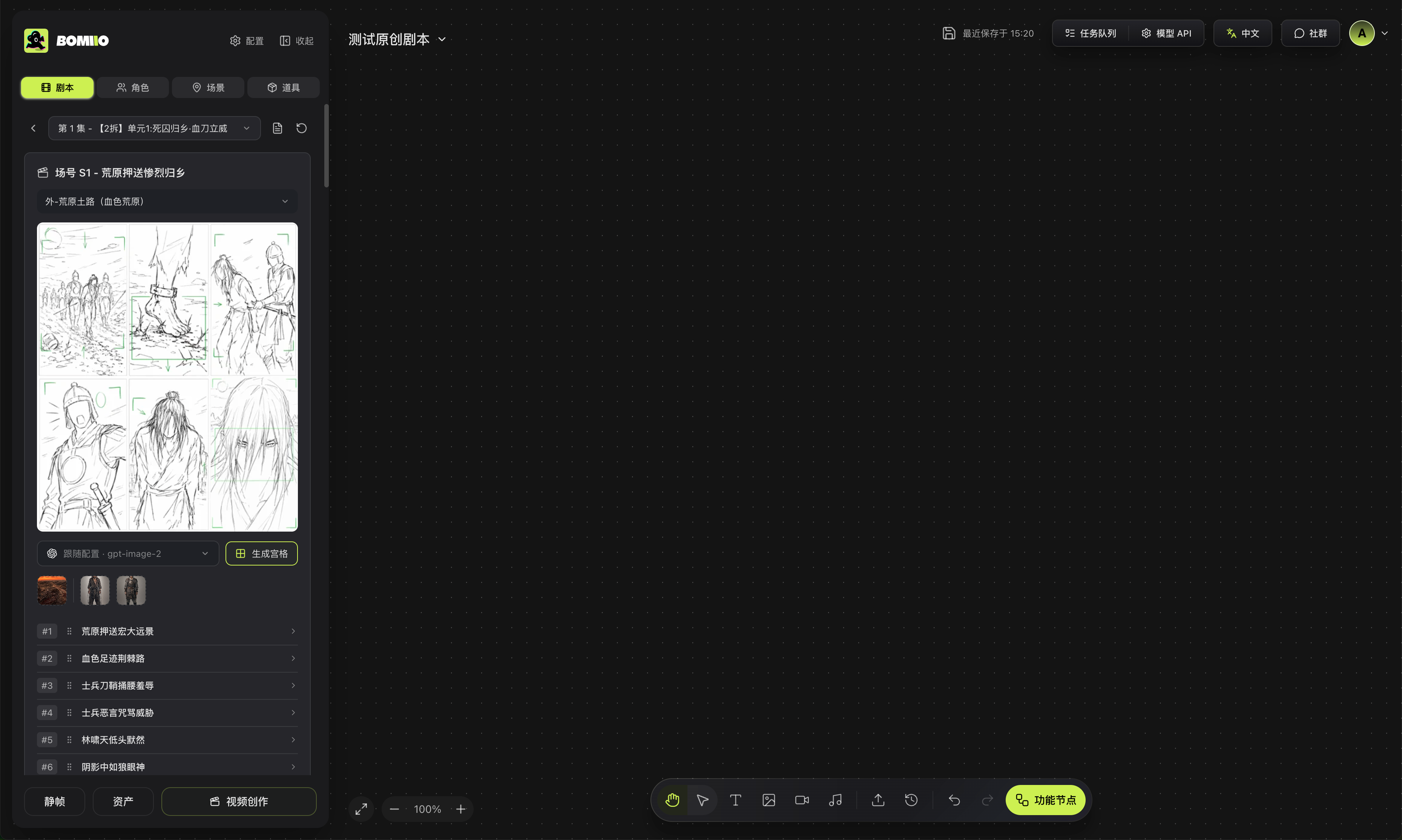
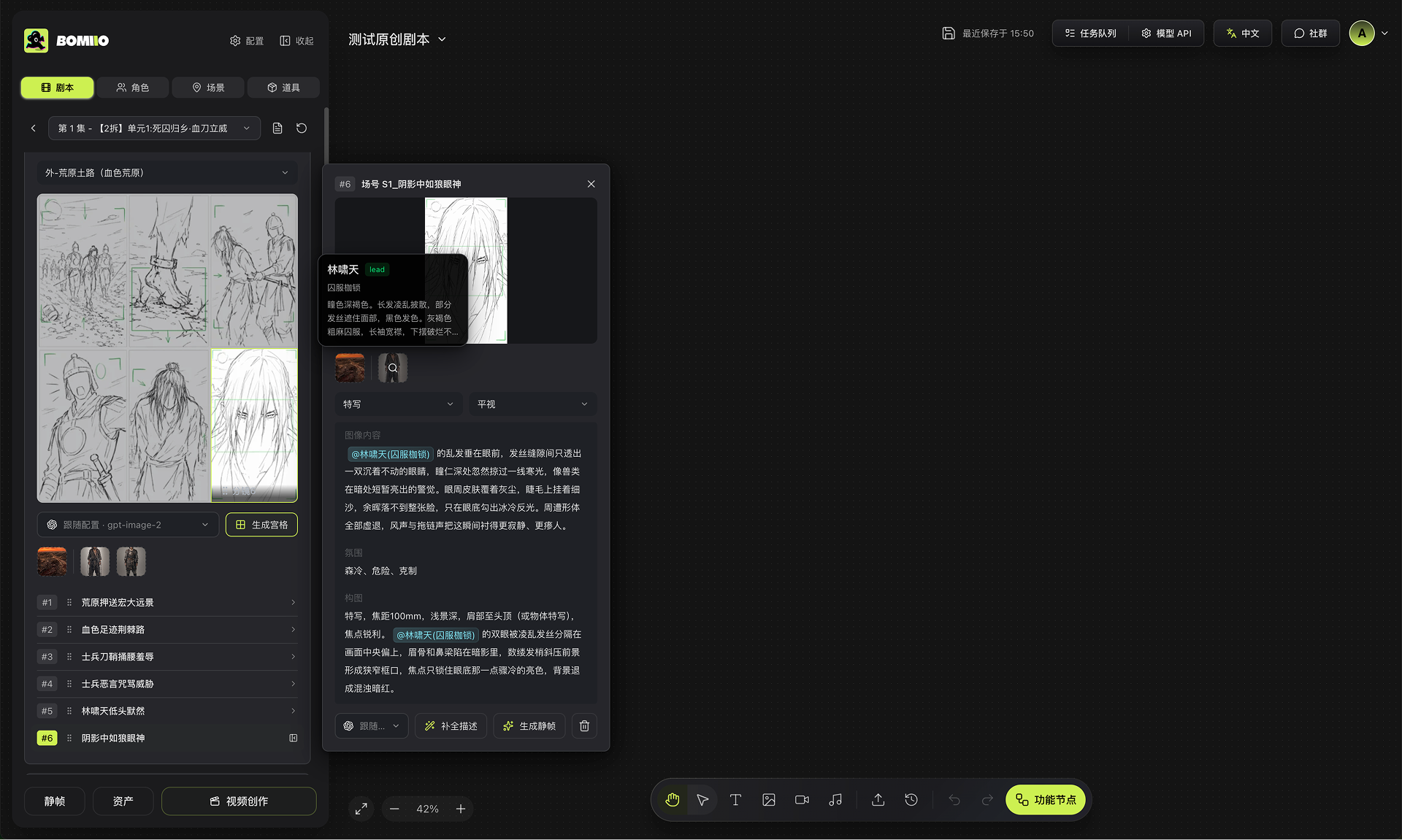
The single-episode detail page loads all of the following at once:
- The current script content and status.
- The shot list for the script.
- The scene groups under the script.
Here you can:
- Switch the episode you are viewing.
- View the full script text.
- Stop processing that is still running.
- Open still-frame editing for a single shot from a scene group.
- Return to the asset tab and correct assets referenced by the current script.
> In a single-episode detail view, you can check the still-frame grid and shot order by scene group, then continue into assets or video creation from the bottom.
## Read-only and continuity locks
When an episode is being used as a breakdown cue by downstream steps, continuity-related actions in the single-episode detail view are restricted, such as:
- Dragging shots within a scene group.
- Moving shots across scene groups.
- Deleting shots.
- Creating a new scene group by dragging a shot out of a scene group.
At that point the page shows a "cue locked" message.
## Linked with the asset tab
If you click "View" for a given asset type from the script detail page, the Director Console switches to the matching Characters, Scenes, or Props tab and can filter to only the assets extracted for that episode. The filter banner shows "Only show assets newly extracted for episode X", and you can switch back to "Show all" at any time.
## Next steps
- [Asset Management](/docs/bomitv/director/assets.md)
- [Storyboard and Scene Groups](/docs/bomitv/director/storyboard.md)
- [Batch Generation](/docs/bomitv/director/batch-generation.md)