# Storyboard and Scene Groups
Organize shots by scene group, check asset references and shot order, and generate a still-frame grid for each group.
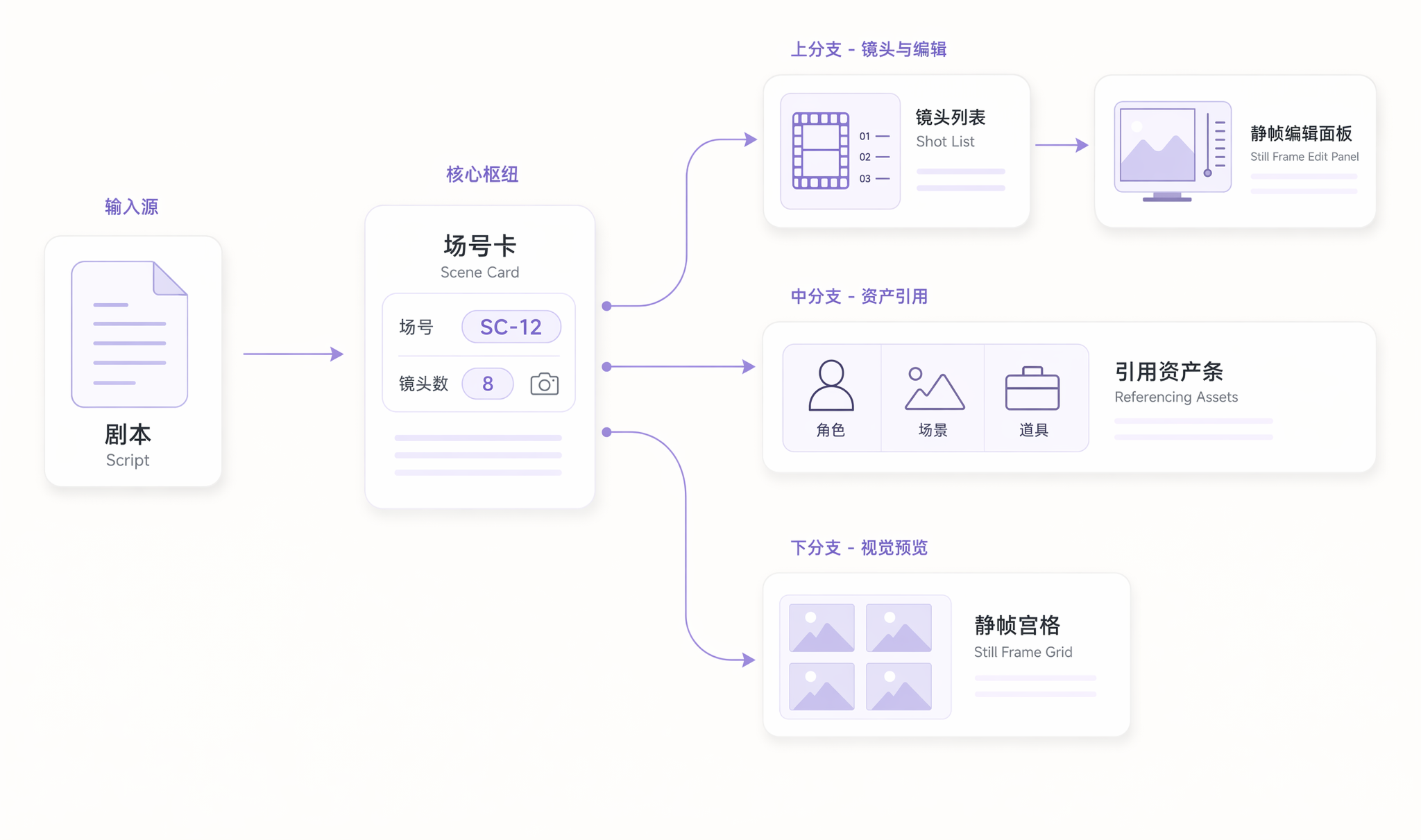
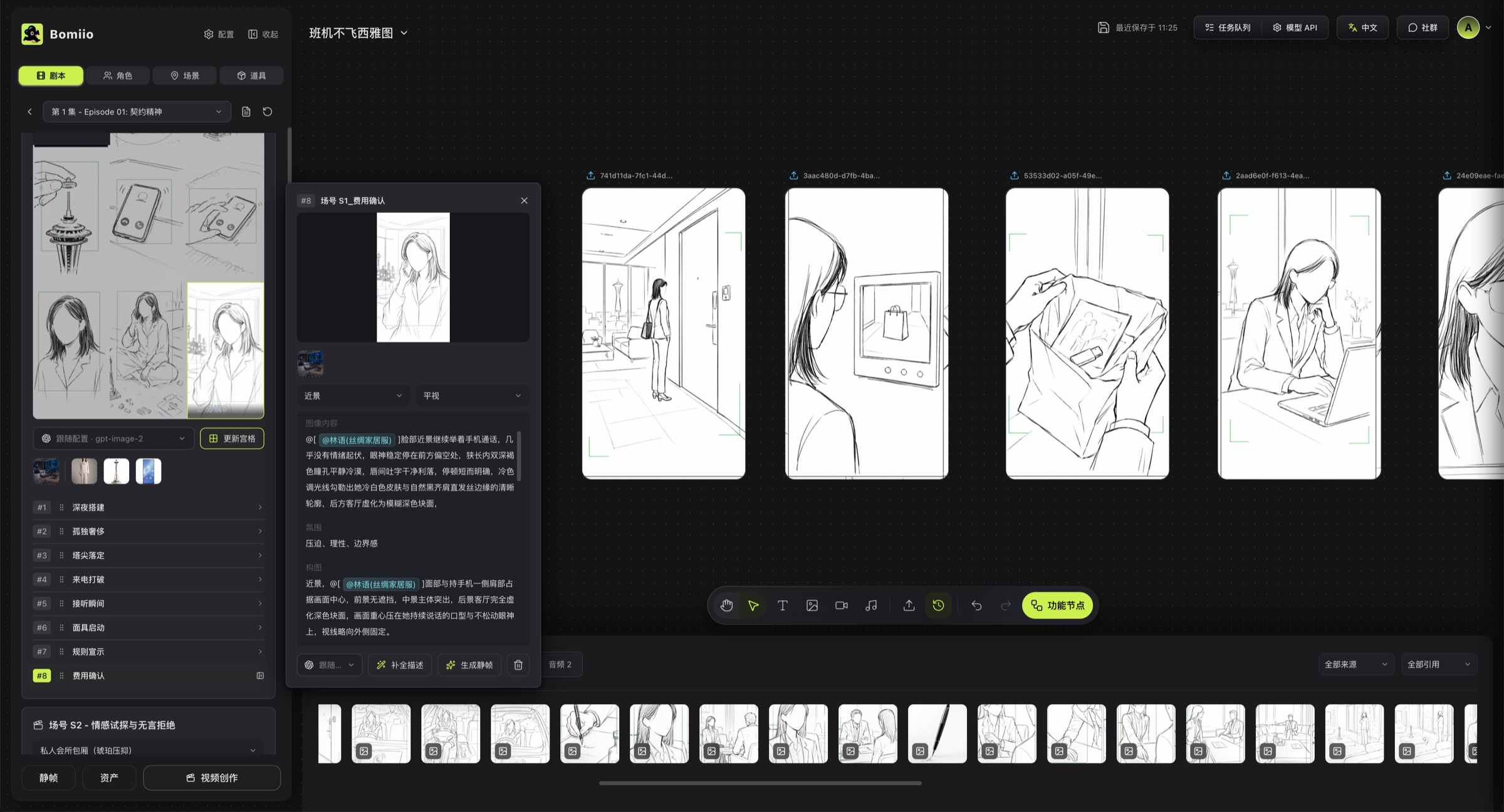
In Bomiio, the storyboard lives mainly in the scene-group view of a single episode. Each scene-group card groups the same set of shots and maintains a scene-group-level still-frame grid.
## Core structure of the scene-group view
Here you usually see all of the following at once:
- The scene-group label and shot count.
- The currently bound scene variant.
- Thumbnail strips for the characters, scenes, and props referenced in the shot text.
- The still-frame status of each shot.
- The grid status for the entire scene group.
## What a scene-group card can do
- Choose or switch the scene variant for a scene group.
- Generate a still-frame grid for the current scene group.
- Open the character, scene, or prop editor directly from the asset strip.
- View the still-frame completion status for every shot in a scene group.
When a scene group has only one shot, it does not use a 2x2 or 3x3 grid; it displays as a Single Shot instead.
## Shot order and scene-group regrouping
The single-episode detail page already supports these structured actions:
- Drag shots to reorder them within the same scene group.
- Drag shots into another scene group.
- Drag shots into the gap between scene groups to create a new scene group.
- Duplicate a shot.
- Delete a shot.
These actions update the shot order under the scene group directly. If the current script is in continuity lock, the action is blocked.
## Open still-frame editing for one shot
Clicking a shot opens the still-frame editing panel beside it. The panel currently supports:
- Editing shot description, composition, and mood.
- Continuing to use character and prop references in the text.
- Viewing the characters, scenes, and props currently referenced by the shot.
- Generating still frames after selecting an image model.
- Switching and reordering multiple still frames for the same shot.
If a shot direction is wrong, fix the shot copy here first. If the root cause is the character or scene itself, go back to [Asset Editing](/docs/bomitv/director/asset-editing.md).
## What the grid is for
The scene-group grid is not the final video. It is used to quickly check continuity for a group of shots under the same scene group:
- Whether character appearance changes unexpectedly.
- Whether scene direction stays consistent.
- Whether the composition rhythm feels right.
- Whether key props are missing.
After you confirm the grid direction, continuing with video creation is safer.
## One-click Combined Shot generation in the Editor
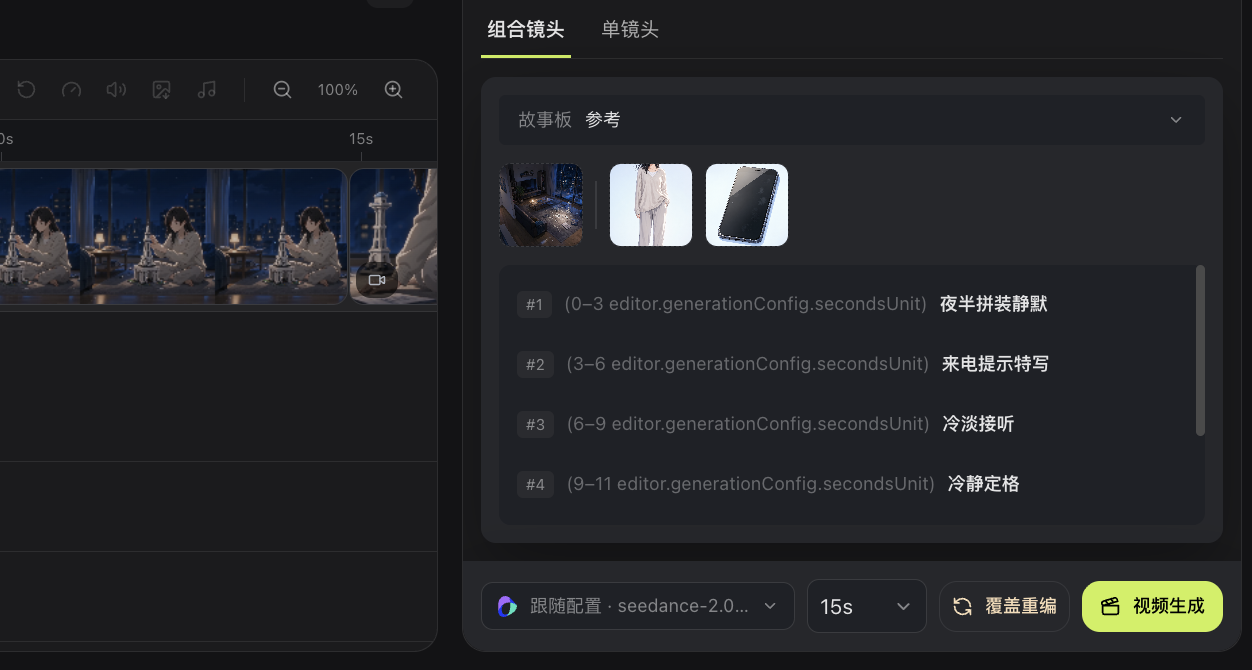
In the Editor, you can generate prompts directly for a scene group and use the generated prompt to create a Combined Shot with one click. This entry is suited to turning already confirmed scene-group still frames, shot order, and asset references into one continuous video segment, which reduces repeated setup for each shot.
When you use it:
1. Select the scene group you want to process in the Editor.
2. Generate and review the Combined Shot prompt for that group.
3. After confirming the model and reference materials, start Combined Shot generation with one click.
4. When generation finishes, return to the timeline preview and regenerate only the affected scene group if you need adjustments.
> The available models, reference modes, and parameters for Combined Shots depend on the current AstraFlow-connected interface. Before generating, check that the prompt matches the scene group content to avoid regenerating the whole group by mistake.
## Related pages
- [Scripts and Breakdown](/docs/bomitv/director/scripts.md)
- [Asset Editing](/docs/bomitv/director/asset-editing.md)
- [Batch Generation](/docs/bomitv/director/batch-generation.md)