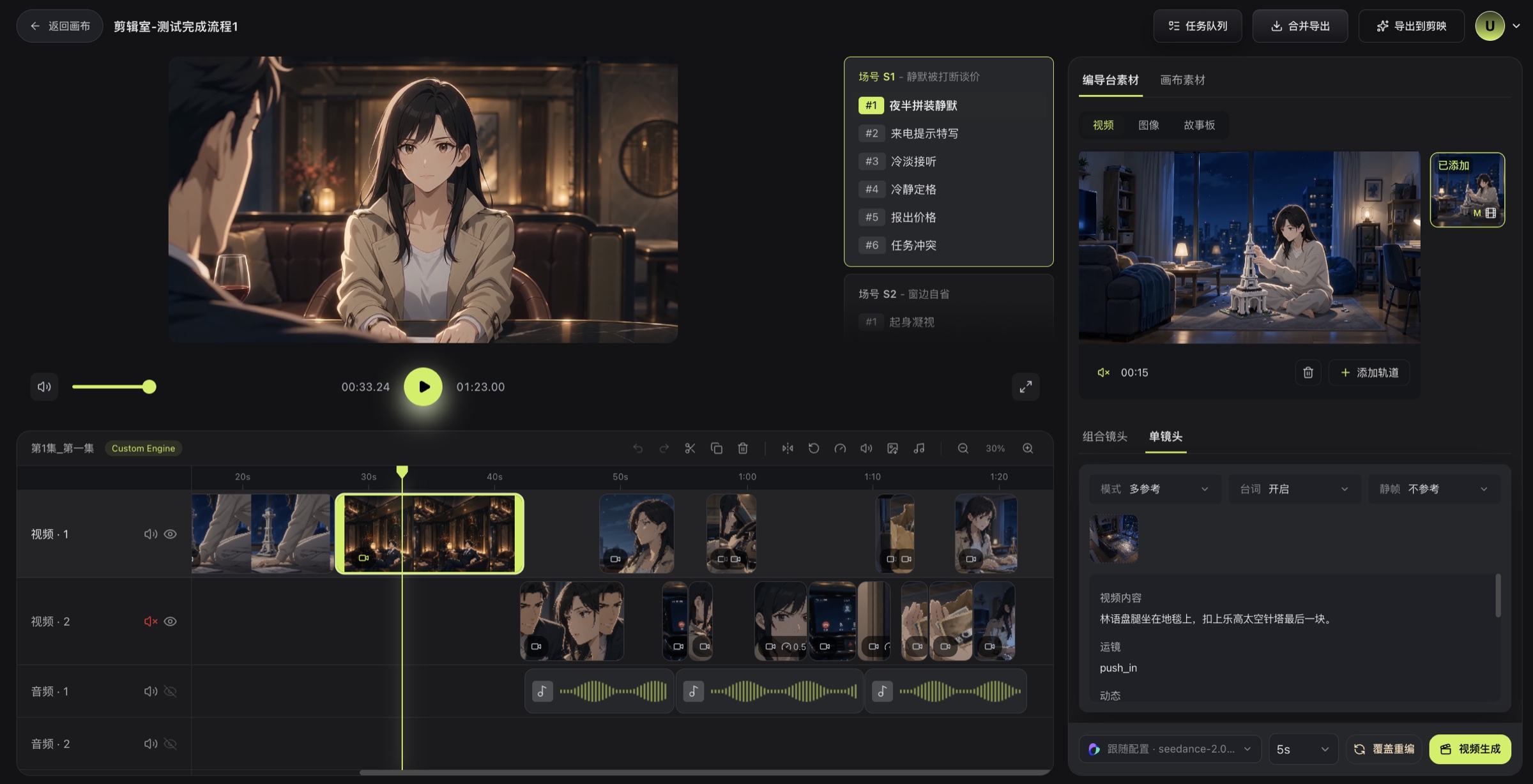
# Preview & Export
After reviewing the complete timeline, merge the final video and download the exported result.
Play the full episode from the beginning before exporting. Merge & Export uses the available visual and audio clips on the current timeline to produce the final video.
## Pre-export Checklist
- [ ] Shot order and clip durations are correct.
- [ ] The timeline has no unintended gaps or overlaps.
- [ ] All required media is accessible and loads correctly.
- [ ] Visual-track visibility is correct.
- [ ] Audio tracks, mute states, and volume settings are correct.
- [ ] The episode has been previewed from beginning to end.
## Merge & Export
1. Click **Merge & Export** at the top of the Editor.
2. Wait for export progress to complete.
3. When processing finishes, the browser begins downloading the video.
> After reviewing the preview, scene-group media, and timeline, click Merge & Export in the upper-right corner of the Editor. View export progress and results in the Task Queue.
## If Export Fails
1. Find the Final Video Export task in the Task Queue and read its error summary.
2. Return to the timeline and confirm that media still loads.
3. Check for invalid clips or inaccessible media.
4. Fix the issue, then start the export again.
Bomiio's current creator workflow uses Merge & Export and browser download from the Editor.
## Related Pages
- [Timeline Operations](/docs/bomitv/editor/timeline.md)
- [Task Queue](/docs/bomitv/reference/tasks.md)
- [Troubleshooting Guide](/docs/bomitv/help/troubleshooting.md)