# Video Generation
Generate video media for the timeline from the current shot's still frames and description.
Video creation works with the current episode and shot. Available input methods, reference media, and parameters depend on the selected video model; this documentation does not assume a fixed set of model capabilities.
## Recommended Workflow
1. Select the target shot in the shot list, then choose **Single Shot** or **Combined Shot**.
2. Review the current fields for video content, camera movement, motion, dialogue, ambient sound, sound effects, and atmosphere.
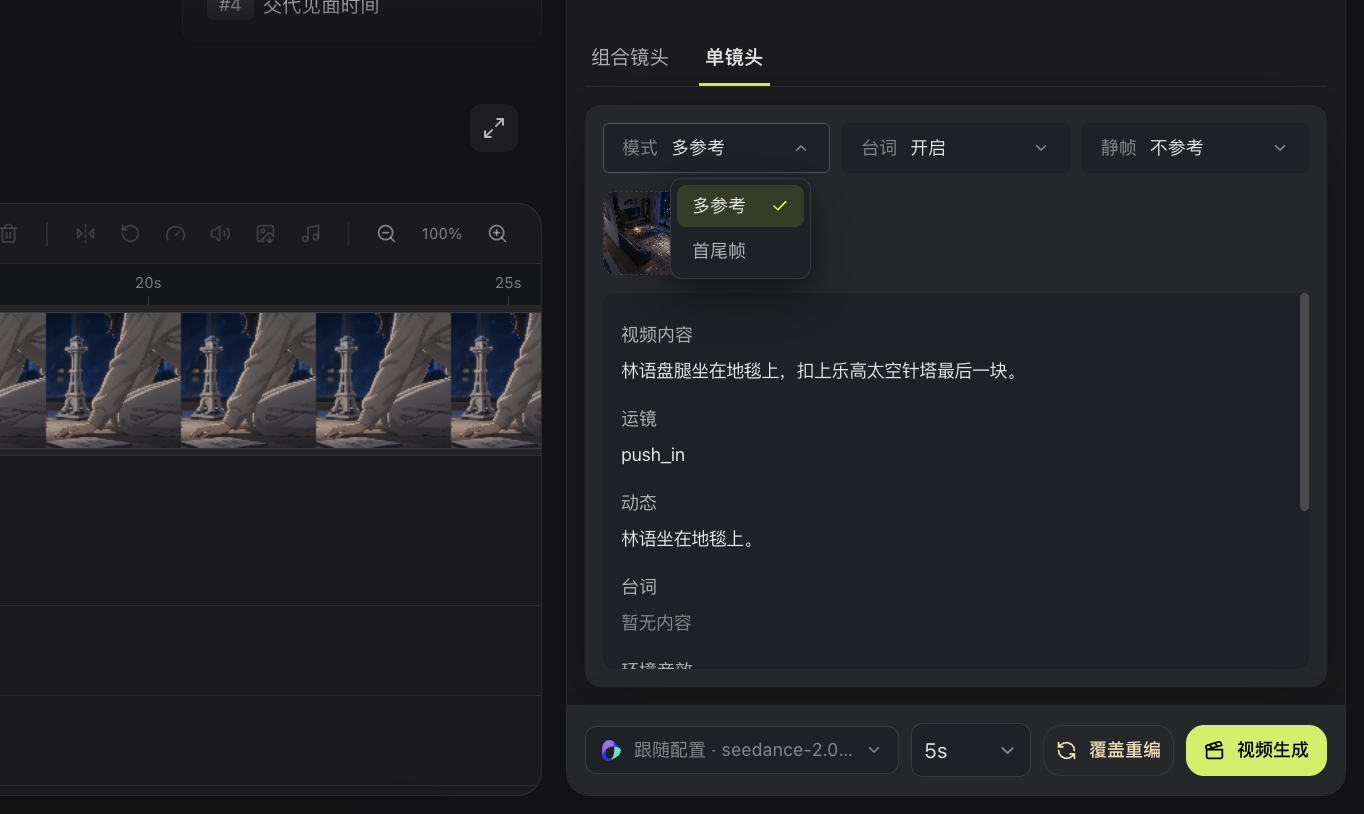
3. In Single Shot mode, check multi-reference or first-and-last-frame input, dialogue, and still-frame references. In Combined Shot mode, check whether the storyboard is used as a reference.
4. Select a generation method and model parameters currently available in the interface.
5. Submit one key shot first.
6. Preview the result after the task completes, then decide whether to generate the remaining shots.
If the current shot has not been orchestrated, use **Orchestrate Prompt** to create an editable draft, then review it manually. **Overwrite & Re-orchestrate** replaces existing user-edited fields in that scene group with the new orchestration result. Confirm that the current manual content is no longer needed before continuing.
```mermaid actions={false}
flowchart TD
A["Select a shot"] --> B["Review description and references"]
B --> C["Submit video generation"]
C --> D{"Task complete?"}
D -->|No| E["Open task details"]
E -->|Failed| B
E -->|Still processing| D
D -->|Yes| F["Preview video"]
F --> G{"Meets expectations?"}
G -->|No| B
G -->|Yes| H["Add to timeline"]
```
## What to Check
- Does the character appearance match the asset and neighboring shots?
- Is the scene's spatial direction continuous?
- Does the main action match the shot description?
- Are dialogue, ambient sound, and atmospheric audio accurate and free of content not present in the script?
- Are video duration and motion suitable for the current edit position?
> In Single Shot mode, select Multi-reference or First & Last Frames according to the current model, then review dialogue, still-frame references, and video content. After confirming the model and duration, click Generate Video. Use Overwrite & Re-orchestrate when the content must be orchestrated again.
## Task and Cost Notice
After submitting a generation task, use the Task Queue to see whether it is queued, running, completed, or failed. You can interrupt a running task, but the model request may already have incurred charges. Bomiio discards later results after interruption, but computation on the model provider's side may not stop immediately.
## Related Pages
- [Storyboards and Scene Groups](/docs/bomitv/director/storyboard.md)
- [Task Queue](/docs/bomitv/reference/tasks.md)
- [Timeline Operations](/docs/bomitv/editor/timeline.md)