# Connect AstraFlow
Use an AstraFlow API key to import the models Bomiio needs for creation in one step.
Bomiio uses AstraFlow as the unified model integration for creators. Bomiio and AstraFlow share the same login entry and account system, so this page does not cover account registration separately.
## First-time setup
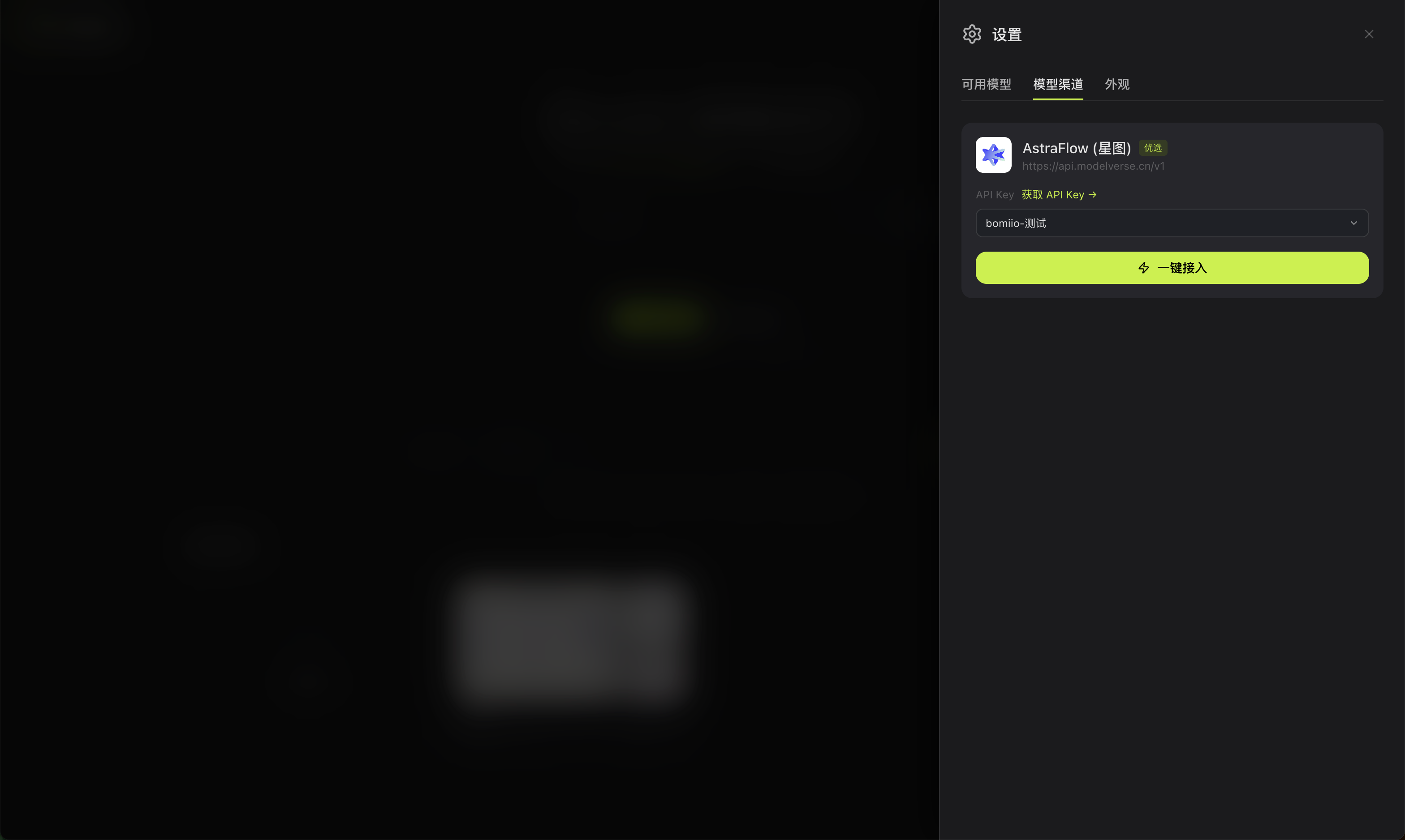
1. On the Bomiio home page or the top-right of Infinite Canvas, open "Settings" and switch to "Model Channel".
2. In the AstraFlow card, click "Get API Key" to create or find a key in AstraFlow.
3. Return to Bomiio and select the API key you want to use from the dropdown. If it does not appear automatically, you can enter it manually.
4. Click "One-Click Connect".
5. Wait for the page to show "Connected" and confirm that the available model count appears.
> "Get API Key" takes you to AstraFlow to obtain credentials. After you get the key, return to Bomiio, select the matching entry, and click "One-Click Connect". The key name in the screenshot is only an example and does not represent a fixed configuration.
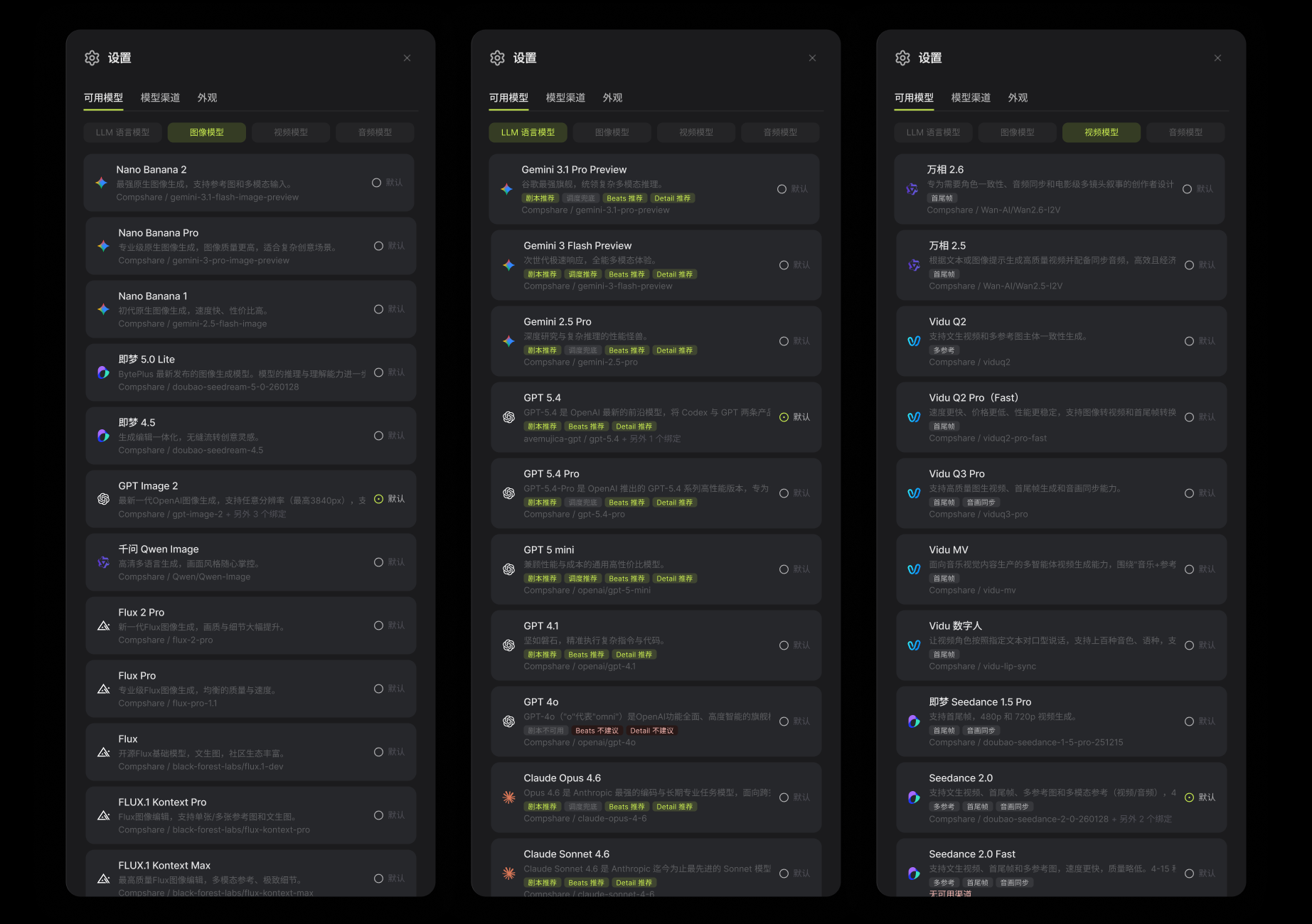
> The screenshot shows the model list after connection and does not include the API key input area. Model names and counts change with the current key and are not a fixed list.
After setup is complete, Bomiio imports the available models based on the current key. The specific models and generation methods depend on AstraFlow's current authorization and the options visible in the Bomiio interface.
## Basic checks after connecting
Before creating your first episode, open the Director Console settings and make sure you can select usable options in all of the following places:
- Script model.
- Scheduler model.
- Image model.
- Video model.
If any item is empty or marked unavailable, return to the model API page and check the connection status before submitting the script for processing.
## Switch API keys
When connected, the page displays the current key in a masked overlay. To switch keys:
1. In "Switch API Key", select or enter a new key.
2. Click "Update".
3. Wait for the model list to refresh.
4. Check the model selections in the Director Console settings again.
Different keys may expose different available models. After switching, some models in the existing configuration may become unavailable and need to be selected again.
## Disconnect
Disconnecting AstraFlow removes the current key and its model bindings. The canvas you are working on will not be deleted automatically, but later generation steps that depend on models will stop working until you reconnect and finish the setup.
## API key security
- Do not put API keys in prompts or script text.
- Do not share screenshots that include a full key.
- When troubleshooting, describe only the error message and the steps you took. Do not paste the key.
- If you suspect a key has leaked, disable or rotate it in AstraFlow, then update Bomiio.
## FAQ
### One-click connection fails
Make sure the key has no extra spaces and is still valid, then try again. If the page shows a network error, resubmit later. Do not create multiple duplicate configurations in a row.
### Connected, but no models appear
Check whether the key has permission to use any models in AstraFlow, then update the key or reconnect. After the models return, go back to the Director Console settings and complete the basic checks.
### A generation mode is unavailable
Different models support different inputs and generation methods. Use the currently available options in the interface. If the selected model does not support the current mode, choose another available mode or switch to another usable model.
## Next steps
- [Create a Canvas](/docs/bomitv/getting-started/create-canvas.md)
- [Generate Your First Episode](/docs/bomitv/getting-started/first-episode.md)
- [Director Console Settings](/docs/bomitv/director/configuration.md)