# Create a Canvas
Start automated creation from a single-episode script, or create a blank canvas to organize assets freely.
Bomiio offers two entry points: create from a script or create a blank canvas. Both require you to choose a content language.
## Option 1: Upload a single-episode script
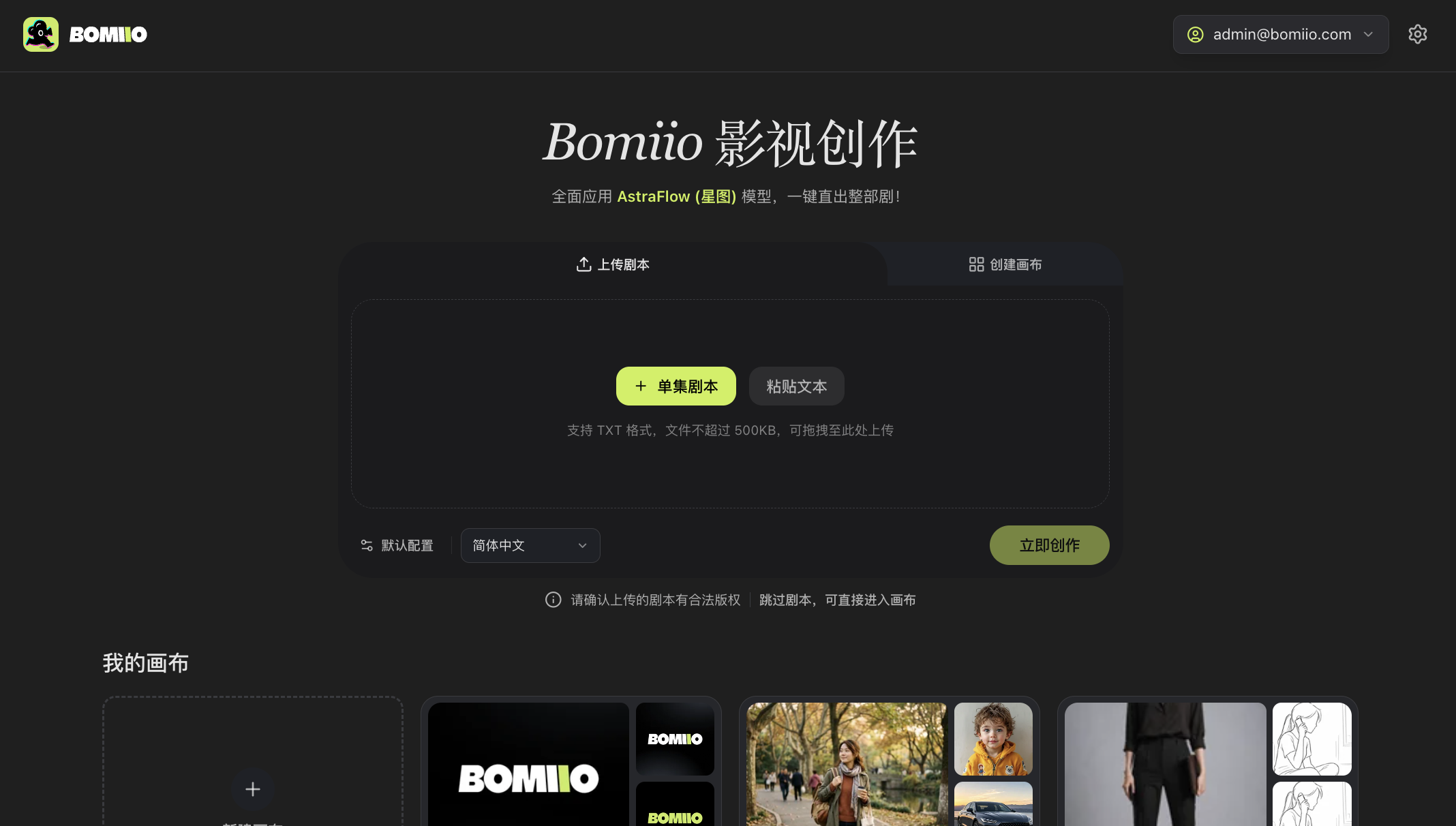
1. Click "Single-Episode Script", or drag a file into the upload area.
2. Select a `.txt` text file.
3. After the file is read, check the displayed title and character count.
4. Choose a content language.
5. Click "Default Settings" and check the models, genre, duration, aspect ratio, and style required by the Director Console.
6. Click "Create Now".
Upload limits:
- Only `.txt` files are accepted.
- The file must be no larger than 500 KB.
- The file content cannot be empty.
> Make sure the script you upload is covered by valid copyright or usage rights.
> The screenshot shows the "Single-Episode Script" and "Paste Text" entries, plus Default Settings, Content Language, and "Create Now".
## Option 2: Paste a script
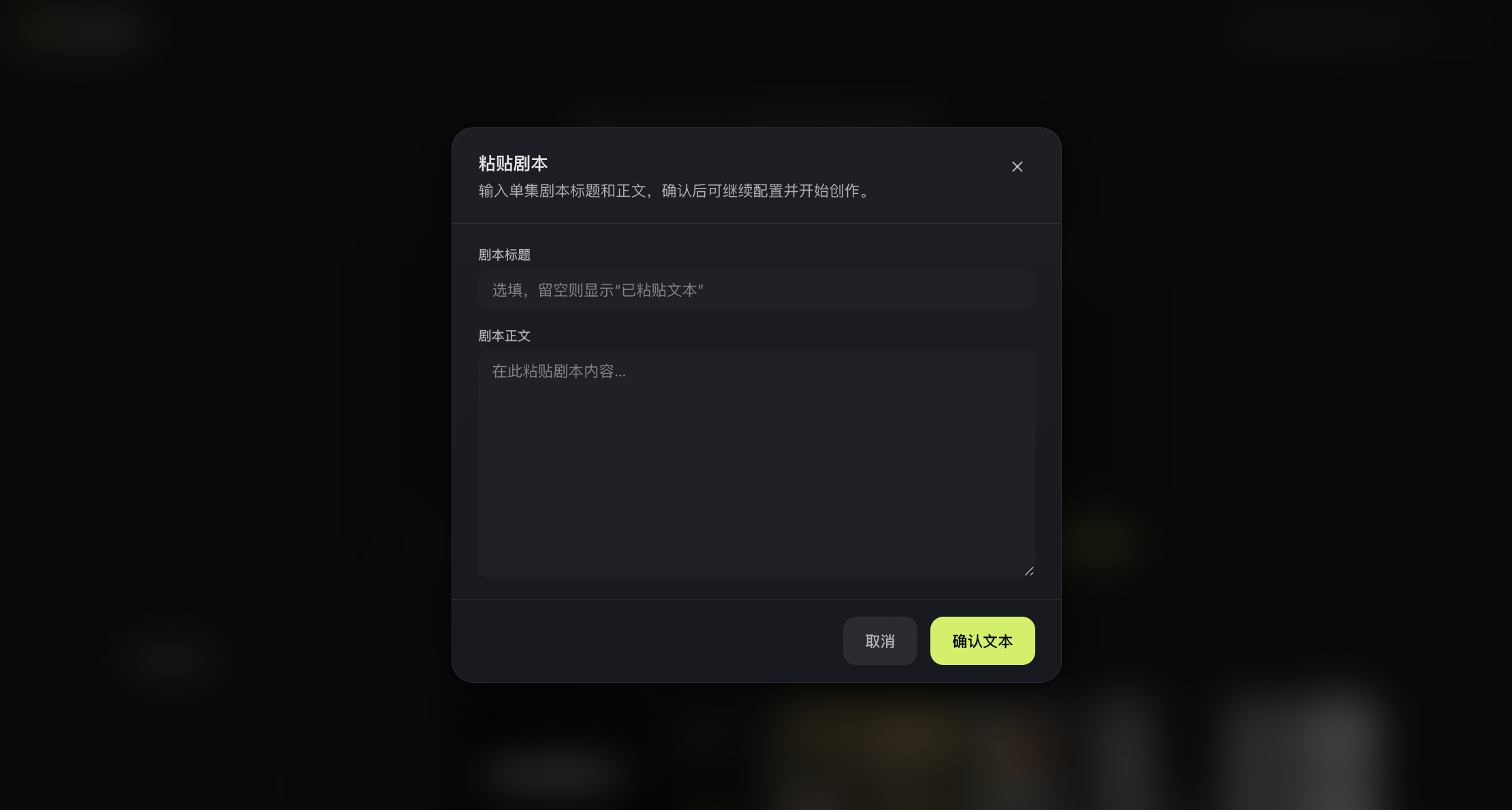
1. Click "Paste Text".
2. Enter a script title. The title can be left blank.
3. Paste the full single-episode script text.
4. Click "Confirm Text".
5. Choose the content language and default settings, then start creating.
Pasted content also cannot exceed 500 KB. If the title is left blank, the list uses a default name to identify the text block.
> Fill in an optional script title in the dialog, paste the script body, and click "Confirm Text".
## Option 3: Create a blank canvas
Click "Create Canvas" or "Skip the script and enter the canvas directly" at the bottom of the page, then:
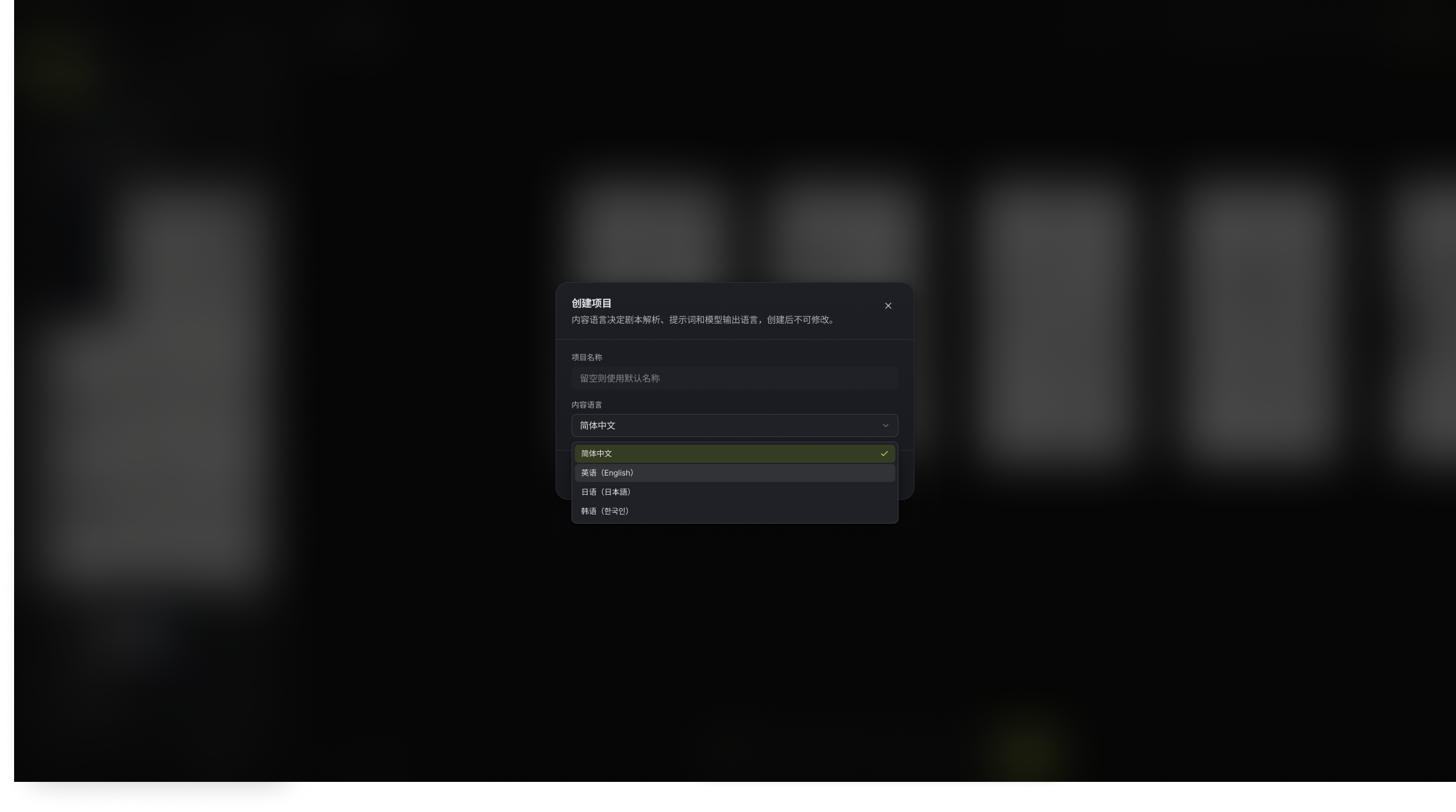
1. Enter a canvas name. You can leave it blank to use the default name.
2. Choose a content language.
3. Click "Create".
A blank canvas is useful for uploading assets directly, using text, image, video, and audio nodes, or adding a script from the Director Console later.
## Choose a content language
Content language determines the language used for script parsing, prompts, and model output, and it cannot be changed after creation. It is different from the "Interface Language" in the top-right corner, which only changes the UI text.
For the full distinction, see [Interface Language and Content Language](/docs/bomitv/reference/languages.md).
## Manage existing canvases
In the canvas list, you can:
- Click a canvas card to continue creating.
- Rename a canvas.
- Delete a canvas.
Deletion cannot be undone, and media cleanup may take some time. If a card shows cleanup failed, use "Retry Cleanup". The canvas cannot be opened normally until cleanup finishes.
## Next steps
- [Generate Your First Episode](/docs/bomitv/getting-started/first-episode.md)
- [Meet the Main Interface](/docs/bomitv/getting-started/interface.md)
- [Infinite Canvas Overview](/docs/bomitv/canvas/overview.md)