# Refine and Push Back Assets
Bring Director Console assets into the Infinite Canvas for refinement, then safely save successful results back to the Director Console.
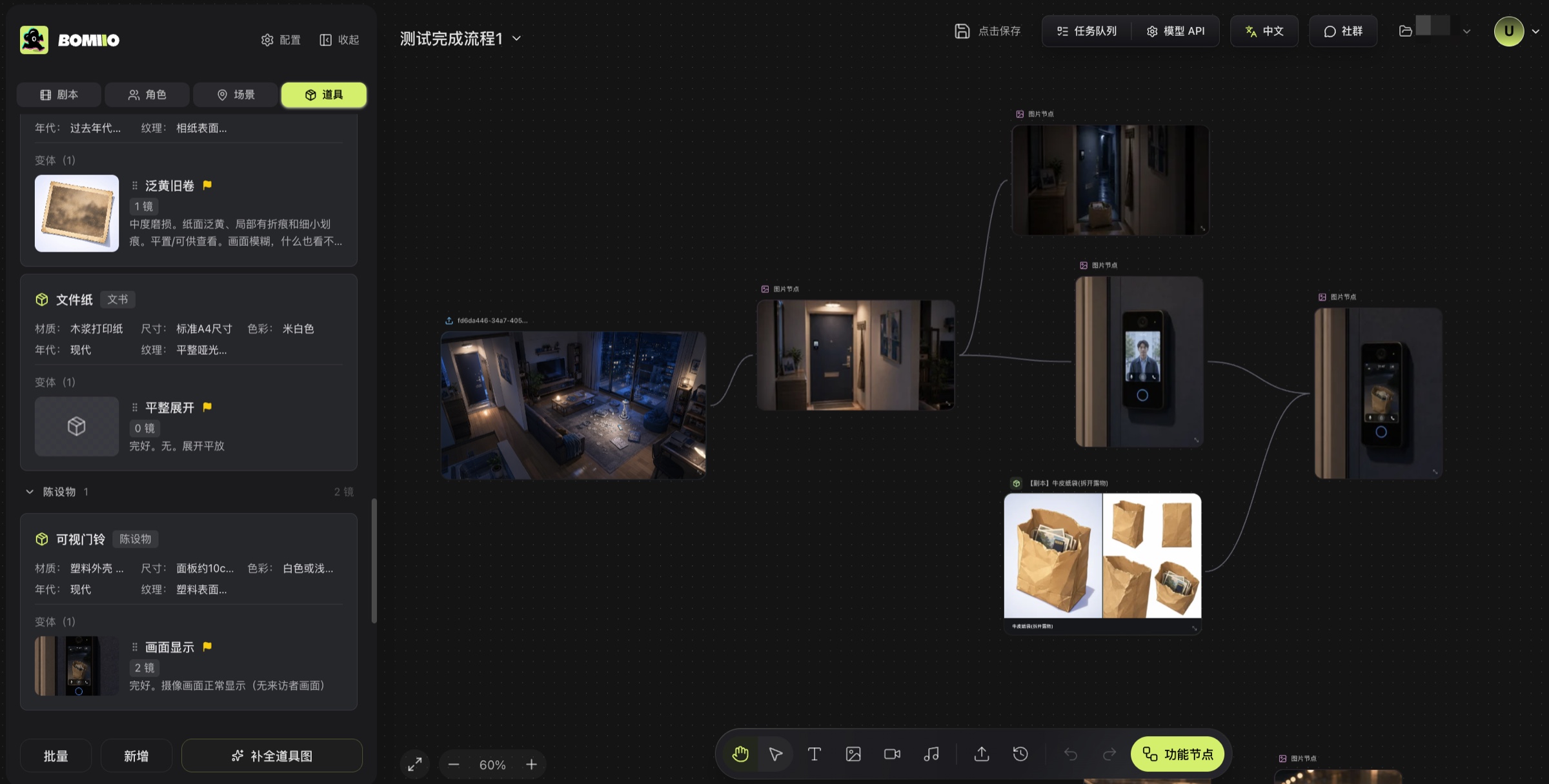
When an existing character, scene, or prop image does not meet a shot's needs, drag the specific variant into the Infinite Canvas and continue refining it with text, uploaded images, and generation nodes. This workflow is useful for correcting a key character's appearance, adding a scene view, or preserving a new visual direction for a prop.
## Workflow Overview
```mermaid actions={false}
flowchart TD
A["Drag an asset variant from the Director Console"] --> B["Connect text or reference images on the canvas"]
B --> C["Generate and compare results"]
C --> D{"Does the result meet the shot's needs?"}
D -->|No| E["Adjust the prompt or references"] --> C
D -->|Yes| F{"How should it be saved?"}
F -->|Keep original| G["Add as New Variant"]
F -->|Replace confirmed| H["Merge into Original Variant"]
G --> I["Review the asset in the Director Console"]
H --> I
I --> J["Regenerate affected still frames or videos"]
```
## Step 1: Select the Variant to Refine
1. Open **Characters**, **Scenes**, or **Props** in the Director Console.
2. Find the variant actually referenced by the shot.
3. Drag that variant into the Infinite Canvas.
First determine whether the problem lies in the description, reference image, or a single view. The narrower the scope, the easier it is to judge whether the result improves.
## Step 2: Prepare Inputs
Create text, image, or upload nodes for the goal, then connect them to the asset node:
- To change styling or atmosphere, use text to specify only what should change.
- To preserve appearance consistency, add a reference image that clearly shows the defining features.
- To replace a specific view, connect the result to the corresponding image slot in the asset node.
Change one direction at a time. For example, solve wardrobe consistency before expressions or composition so that before-and-after results remain easy to compare.
## Step 3: Generate and Select a Result
After generation starts, compare results in the node history. Check:
- Whether the character's face, hairstyle, and identifying wardrobe features remain stable.
- Whether the scene's spatial direction, time, and weather fit the story.
- Whether the prop's shape, material, and state are accurate.
- Whether the new result connects naturally to neighboring shots.
If the result is unsatisfactory, adjust the current input and generate again. You do not need to change the official Director Console version yet.
> The example uses a paper bag in a scene: locate the key prop in the complete scene image, generate a clearer close-up and multiple views, then organize the successful result as a reusable prop asset. Keep a scene reference that shows the prop's environment when connecting nodes to reduce deviations in appearance and lighting.
## Step 4: Choose a Push-back Method
Click **Push to Director Console** on the asset node, then select:
- **Add as New Variant**: Preserve the original variant and save the current result as a comparable new direction. Prefer this for a first refinement or whenever you are unsure.
- **Merge into Original Variant**: Write the differences directly into the original variant. The system displays a confirmation diff. This overwrites the original Director Console data and cannot be undone.
```mermaid actions={false}
flowchart LR
A["Successful canvas result"] --> B{"Must the original be preserved?"}
B -->|Yes or unsure| C["Add as New Variant"]
B -->|No, and differences reviewed| D["Merge into Original Variant"]
```
## Step 5: Review Affected Content
Return to the Director Console and review the new variant or merged result. Existing storyboard still frames and videos do not automatically change after an asset is pushed back. Regenerate affected shots if they should use the new asset.
Regenerate one representative still first. After confirming the direction, complete the remaining related shots.
## Related Pages
- [Asset Editing](/docs/bomitv/director/asset-editing.md)
- [Infinite Canvas Nodes](/docs/bomitv/canvas/nodes.md)
- [Connections and Upstream References](/docs/bomitv/canvas/connections.md)
- [Asset Refinement and Push-back](/docs/bomitv/canvas/asset-workflow.md)