# Using ModelVerse API in Cherry Studio
## Configuration Steps
Follow these steps to configure and use the API services provided by ModelVerse in Cherry Studio.
### Step 1: Obtain an API Key
First, [click here to get your API Key](https://astraflow.ucloud.cn/modelverse/experience/api-keys).
### Step 2: Configure Cherry Studio
1. Click the gear icon in the upper right corner of the interface to enter settings, then select "Model Services".
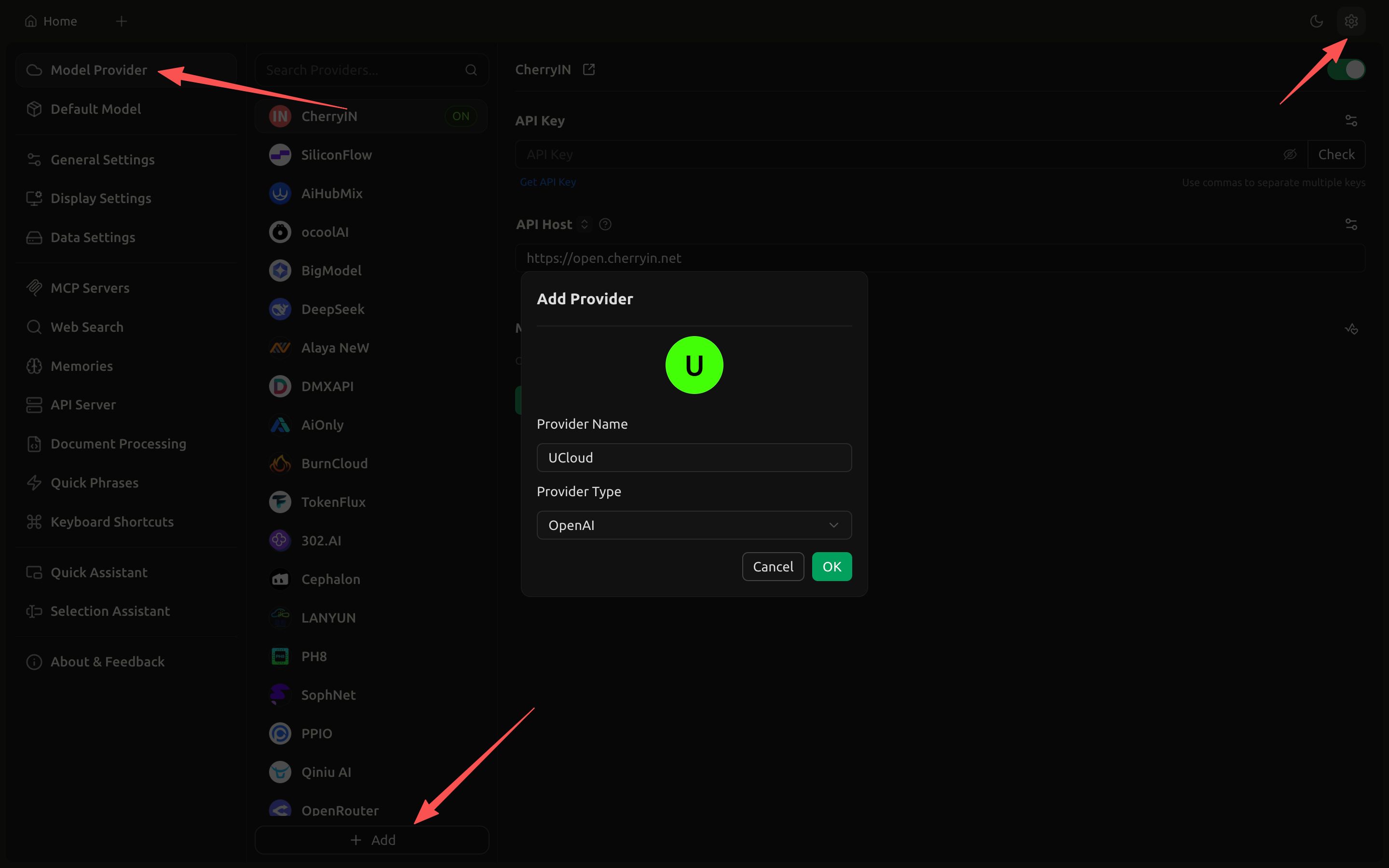 2. On the configuration page, fill in the following information:
* **API Address**: `https://api-us-ca.umodelverse.ai`
* **API Key**: Paste the API Key you obtained in the first step
2. On the configuration page, fill in the following information:
* **API Address**: `https://api-us-ca.umodelverse.ai`
* **API Key**: Paste the API Key you obtained in the first step
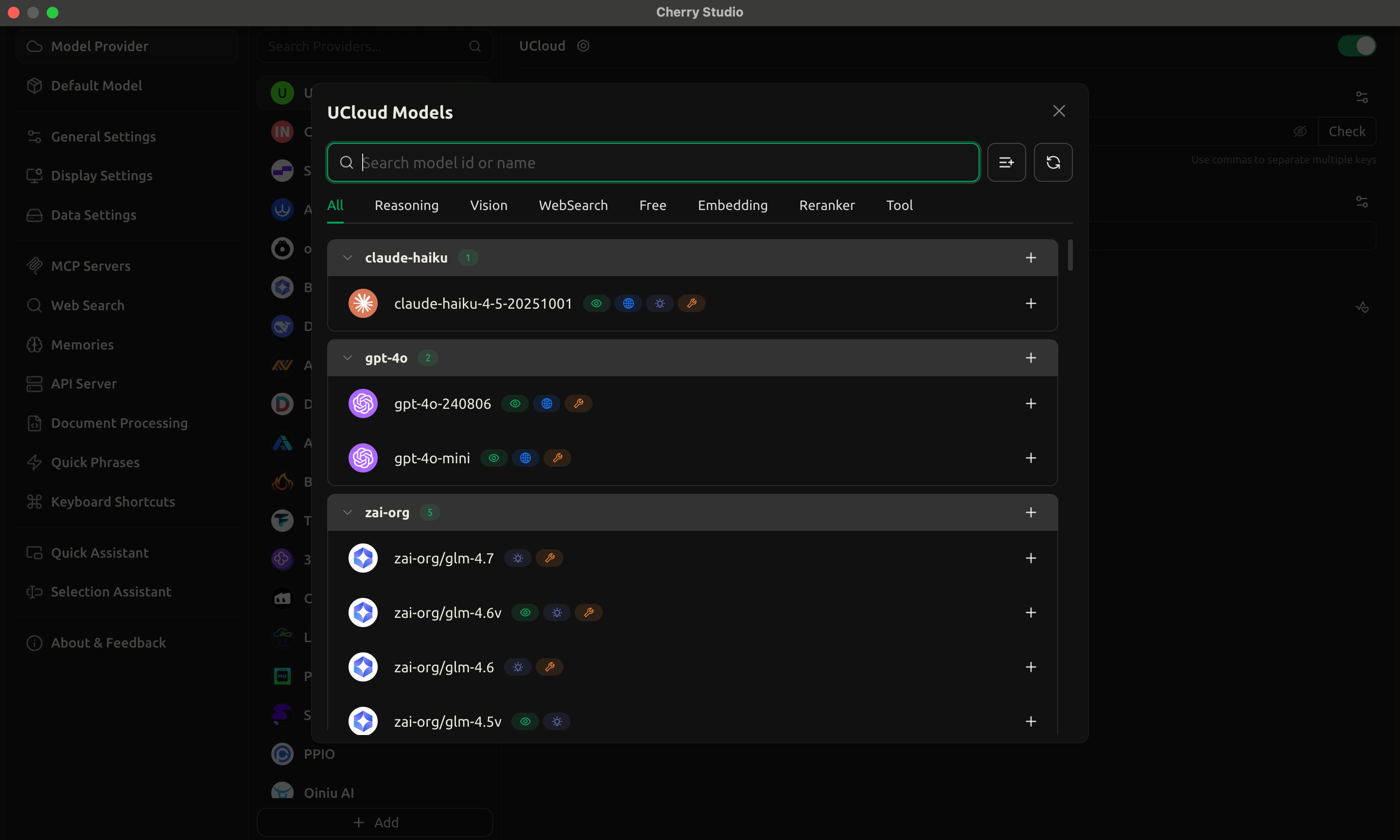
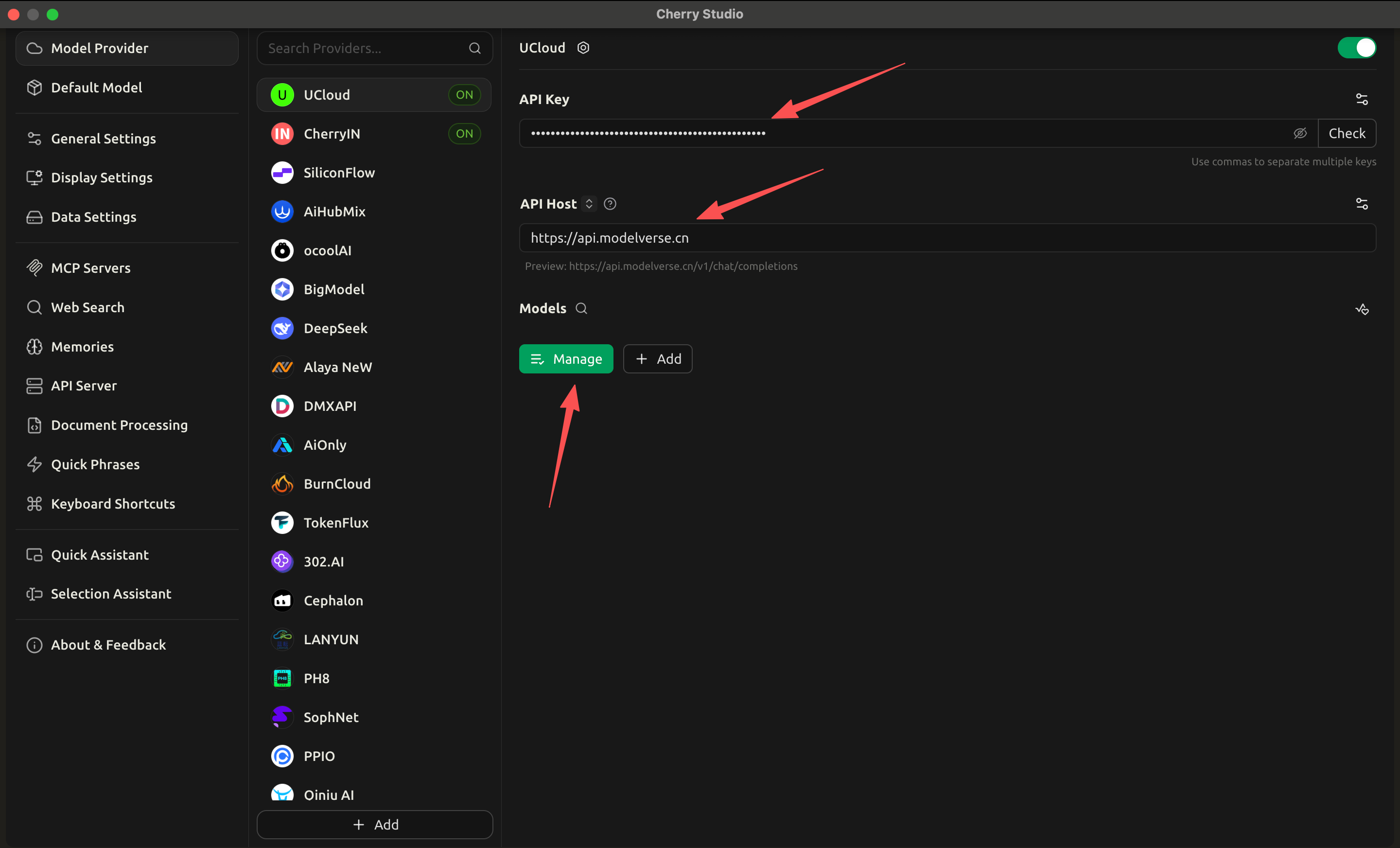 3. Click "Manage", and the system will automatically retrieve and load all available models.
 ### Step 3: Start Using
Once configured, you can use models from ModelVerse in Cherry Studio.
### Step 3: Start Using
Once configured, you can use models from ModelVerse in Cherry Studio.